How to Speed Up a Slow Internet Connection at Home
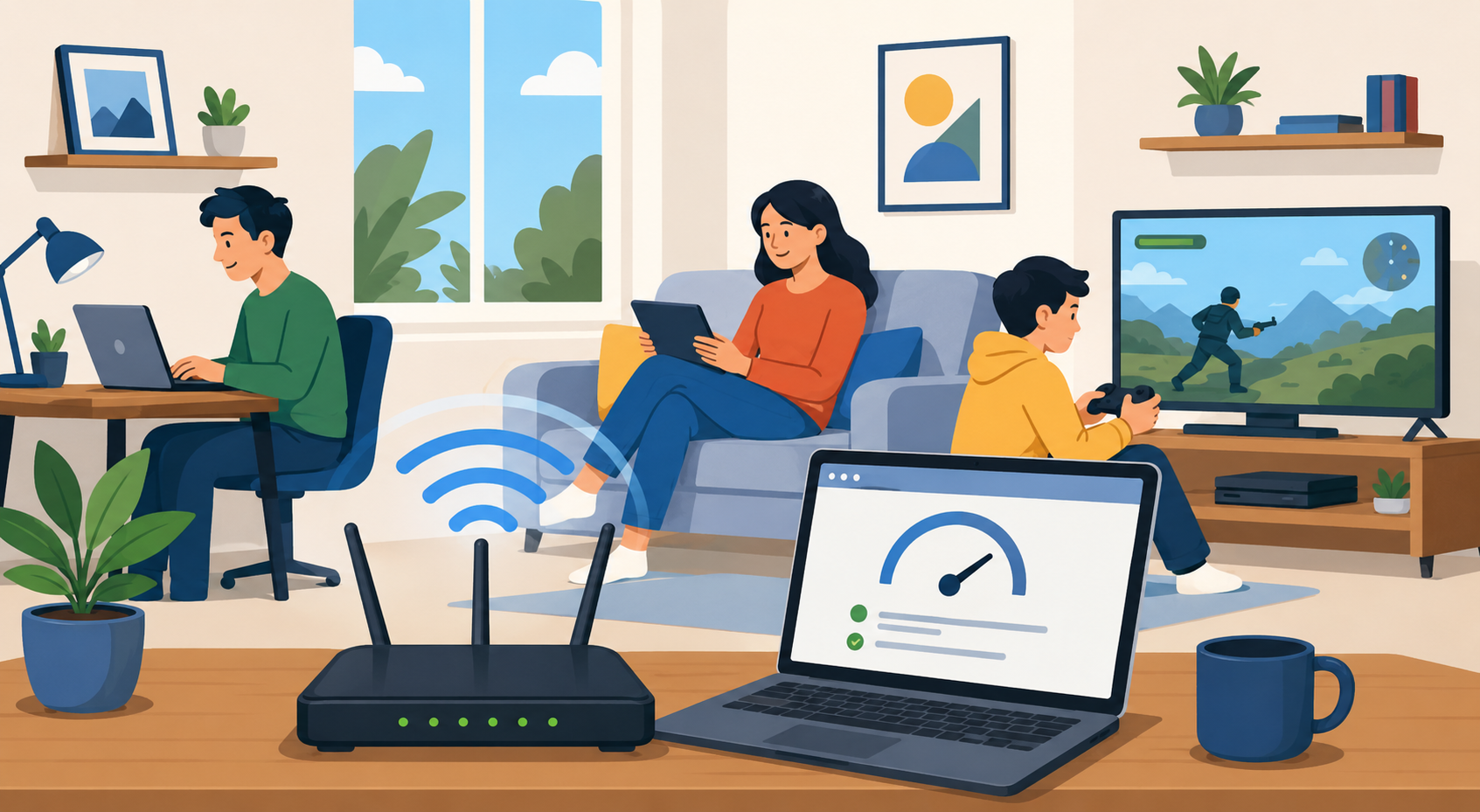
Slow internet can turn even simple online tasks into a frustrating experience. Whether you’re streaming movies, working remotely, attending video calls, gaming online, or managing smart home devices, a weak or unstable connection affects everything.
The good news is that slow internet is often caused by common issues that can be fixed without replacing your entire setup. In many cases, small adjustments to your router placement, device settings, or network usage can noticeably improve your connection speed.
Before upgrading your plan or switching providers, it’s important to identify what’s actually causing the slowdown. Many households pay for high-speed internet but still experience lag because of outdated equipment, overloaded networks, or signal interference.
If your connection frequently disconnects or becomes unstable throughout the day, resolving common home internet dropping issues can help improve overall network reliability before making bigger changes.
Why Your Internet Connection Feels Slow
Internet speed problems can happen for many reasons. Sometimes the issue comes from your internet provider, but often the problem starts inside the home.
Here are some of the most common causes of slow internet:
Too many connected devices
Weak Wi-Fi signal
Outdated routers or modems
Damaged cables
Peak-hour network congestion
Background apps consuming bandwidth
Malware or viruses
Poor router placement
Interference from nearby electronics
Understanding the source of the issue makes troubleshooting much easier.
Start by Checking Your Internet Speed
Before changing settings or replacing equipment, run an internet speed test to see your actual download and upload speeds.
Your internet bill usually lists the maximum speed included in your plan. However, real-world speeds can vary depending on network traffic, Wi-Fi strength, and device performance.
Use a speed test to compare your current speed against the plan you’re paying for.
What Speed Should You Expect?
Recommended Internet Speeds by Activity
| Online Activity | Recommended Speed |
|---|---|
| Web browsing and email | 10–25 Mbps |
| HD video streaming | 25–50 Mbps |
| Remote work and video calls | 50–100 Mbps |
| Online gaming | 100 Mbps+ |
| Smart homes with many devices | 200 Mbps+ |
If your speed test results are dramatically lower than expected, there may be a network issue worth investigating.
Households using advanced fiber internet services often experience more consistent speeds during busy hours.
Restart Your Router and Modem
One of the easiest ways to improve internet performance is to reboot your networking equipment.
Routers and modems can accumulate temporary errors over time, especially if they stay powered on continuously for weeks or months.
How to Properly Restart Your Equipment
Unplug both the modem and router
Wait at least 20 seconds
Plug the modem back in first
Wait for the modem to fully reconnect
Plug the router back in
Allow a few minutes for the network to stabilize
This simple reset can often restore better speeds and improve connection stability.
Move Your Router to a Better Location
Router placement has a huge impact on Wi-Fi performance.
Many people place routers behind TVs, inside cabinets, or near walls that block wireless signals. These obstacles reduce coverage and create weak spots throughout the home.
Best Places to Put Your Router
For better Wi-Fi performance:
Keep it elevated off the floor
Avoid placing it behind furniture
Keep it away from microwaves and cordless phones
Reduce interference from Bluetooth devices
Avoid metal surfaces and thick concrete walls
Open spaces usually provide stronger wireless coverage.
Reduce Network Congestion
Too many devices using bandwidth at the same time can slow down the entire network.
Streaming 4K movies, downloading large files, gaming online, and running video meetings simultaneously all compete for bandwidth.
Devices That Commonly Use Heavy Bandwidth
Smart TVs
Gaming consoles
Security cameras
Cloud backup services
Tablets and phones
Streaming devices
Laptops running automatic updates
Disconnect devices that are not currently being used to free up bandwidth for important tasks.
Homes managing several connected devices at once may benefit from [internet service plans designed for multiple users and smart devices, especially in larger households.
Use an Ethernet Connection When Possible
Wi-Fi is convenient, but wired Ethernet connections are faster and more stable.
If your desktop computer, gaming console, or work laptop supports Ethernet, connecting directly to the router can improve performance significantly.
Benefits of Ethernet Connections
Lower latency
Faster download speeds
More stable video calls
Better online gaming performance
Reduced signal interference
If switching to Ethernet noticeably improves your speed, your Wi-Fi network may be the actual issue.
Check for Malware and Background Apps
Some devices slow down because of software running in the background.
Malware, spyware, automatic updates, cloud sync tools, and hidden browser tabs can quietly consume internet bandwidth without you noticing.
Things to Check on Your Devices
Run antivirus software
Close unused browser tabs
Pause cloud backups temporarily
Disable unnecessary startup apps
Check for large downloads running in the background
Restart devices regularly
Older computers may also struggle with modern internet tasks even when the connection itself is fast.
Replace Damaged or Old Cables
Internet problems are not always wireless.
Loose, damaged, or outdated cables can reduce signal quality and cause unstable connections.
Inspect the following:
Ethernet cables
Coaxial cables
Power adapters
Router ports
Splitters and connectors
If cables appear bent, frayed, or worn out, replacing them may improve performance.
Removing unnecessary coaxial splitters can also help stabilize cable internet connections.
Update Your Router Firmware
Router manufacturers regularly release firmware updates to improve performance, stability, and security.
Outdated firmware can cause slower speeds and connection issues.
How to Update Router Firmware
Most routers allow firmware updates through their admin settings page.
Typically, you can:
Open your router settings in a browser
Log into the admin panel
Look for “Firmware Update”
Install the latest version
Some modern routers update automatically, but older models may require manual updates.
Upgrade Older Networking Equipment
Even if your internet plan is fast, outdated hardware can create bottlenecks.
Older routers may struggle to handle:
Multiple devices
Fiber internet speeds
4K streaming
Smart home traffic
Modern Wi-Fi standards
Signs You May Need a New Router
Weak Wi-Fi coverage
Slow speeds despite a good plan
Overheating
Random restarts
Devices constantly buffering
Wi-Fi 6 routers generally perform better for busy households with many connected devices.
Limit Peak-Hour Slowdowns
Internet speed often slows during peak evening hours when many people in your neighborhood are online simultaneously.
This is especially common with cable internet connections.
Ways to Reduce Peak-Hour Issues
Schedule large downloads overnight
Pause cloud backups during busy hours
Stream at lower resolutions temporarily
Use wired connections for important tasks
Upgrade to fiber internet if available
Fiber networks typically handle congestion better than older cable systems.
Secure Your Wi-Fi Network
An unsecured Wi-Fi network allows unauthorized users to consume your bandwidth.
If neighbors or unknown devices are connected to your network, your speeds may suffer.
Ways to Improve Wi-Fi Security
Change your Wi-Fi password
Use WPA2 or WPA3 encryption
Disable guest access when unused
Rename your network
Remove unknown devices from the router dashboard
Regularly reviewing connected devices helps keep your network secure and efficient.
Consider Upgrading Your Internet Plan
Sometimes slow speeds are simply caused by an outdated or undersized internet plan.
If your household has grown or your online usage has increased, your current plan may no longer be enough.
Signs You May Need Faster Internet
Multiple users constantly streaming
Frequent buffering
Slow downloads
Lag during video calls
Smart devices disconnecting
Heavy online gaming usage
Comparing available internet providers and broadband coverage options near your area can help determine whether a better plan or technology is available.
When to Contact Your Internet Provider
If you’ve tried basic troubleshooting and your speeds are still far below your plan’s advertised rate, it may be time to contact your ISP.
Provide them with:
Speed test results
Times when slowdowns occur
Device information
Router model details
Connection type
Your provider may detect outages, signal issues, or equipment problems remotely.
FAQ About Slow Internet Connections
Why is my internet slow even with a fast plan?
A fast plan does not guarantee fast speeds if your router, devices, or Wi-Fi setup are limiting performance. Interference, congestion, and outdated hardware can also reduce speeds.
Does restarting a router really help?
Yes. Restarting clears temporary system errors and refreshes the network connection, which can improve speed and stability.
How often should I restart my modem and router?
Restarting once every few weeks is usually enough for most households unless problems occur more frequently.
Can too many devices slow down Wi-Fi?
Yes. Every connected device shares bandwidth, especially when streaming, downloading, or uploading files simultaneously.
Is Ethernet better than Wi-Fi?
Ethernet connections are generally faster, more stable, and less affected by interference compared to wireless connections.
When should I replace my router?
If your router is more than 4–5 years old, struggles with multiple devices, or frequently disconnects, replacing it may improve performance.
Related Posts
 Regulations
Technology
Regulations
Technology
What is An Internet Cookie?
Learn what internet cookies are, how cookies work, the different types of cookies, their benefits, privacy concerns, and how to manage them safely online.
 cheap internet plans
mobile phone plans
Broadband Deals
cheap internet plans
mobile phone plans
Broadband Deals
Which Internet Providers Offer a Cheap Mobile Plan?
Discover which internet providers offer a cheap mobile plan when you bundle services. Compare savings, features, and the best options for your budget.
 Broadband Deals
Technology
Broadband Deals
Technology
What Is 5G and Why It Matters for Businesses and Everyday Life
Learn what 5G is, how it works, and why it matters for businesses and consumers. Discover its impact on speed, IoT, automation, and future connectivity.
 Technology
How to Choose High-Speed Satellite Internet for Your Home
Compare the best high-speed satellite internet providers, their features, coverage, speeds, pricing, and tips to choose the right internet service.
 Broadband Deals
cable deal
Broadband Deals
cable deal
How Spectrum Internet Compares to Xfinity, AT&T & HughesNet
Compare Spectrum Internet with Xfinity, AT&T, and HughesNet based on speed, pricing, reliability, technology, and value to choose the right provider.