How to Fix “Authentication Error” on a Mobile Hotspot
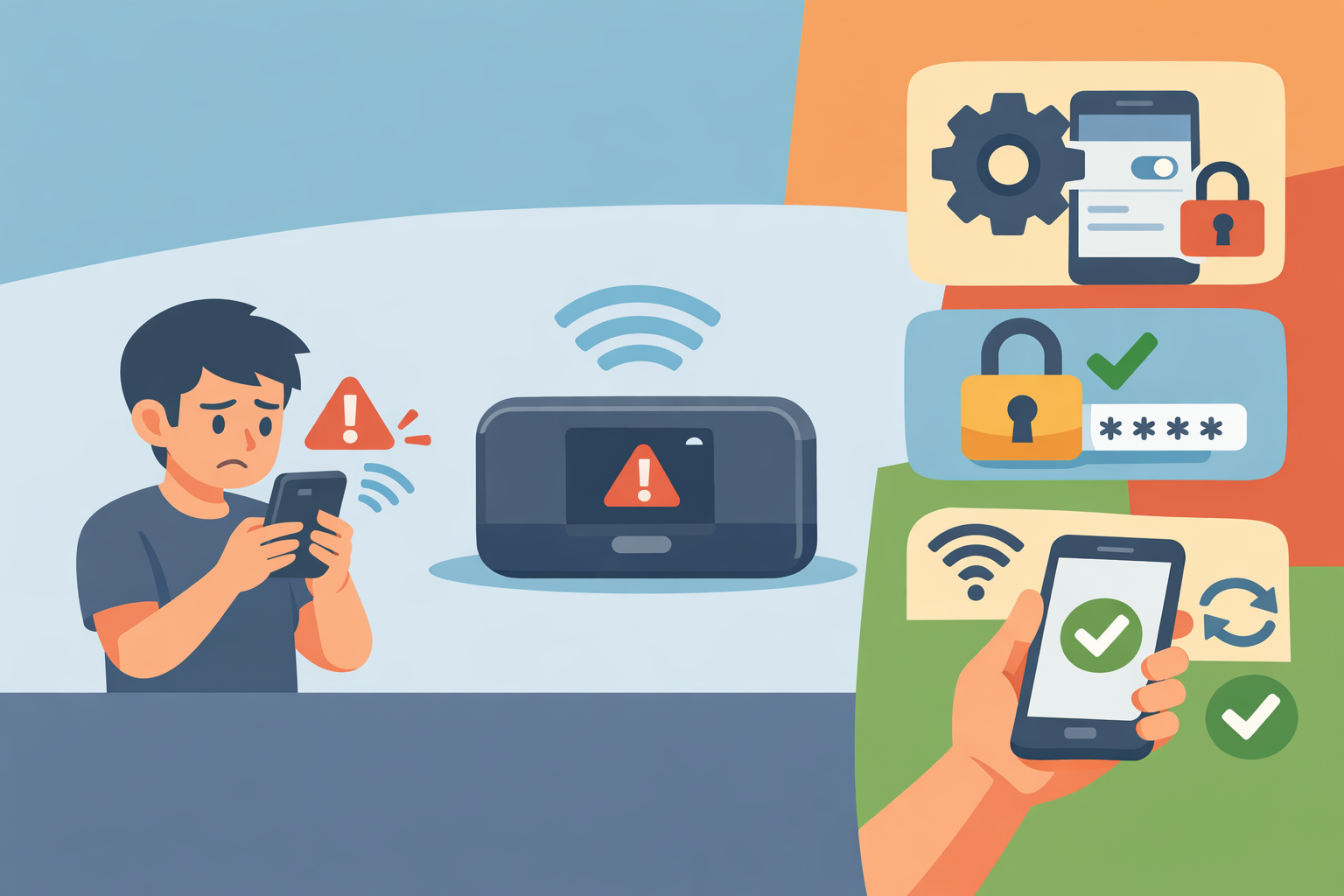
When you try to connect a device to your mobile hotspot and suddenly see the dreaded “Authentication Error” message, it can be confusing and frustrating. Mobile hotspots are meant to provide quick, convenient internet access on the go, but even small configuration issues can lead to failed connections. The good news is that this problem is almost always fixable with the right steps.
What an “Authentication Error” Means on a Mobile Hotspot
When you try to connect a device to your mobile hotspot, your phone broadcasts a Wi-Fi signal similar to a router. If the connecting device cannot verify the password or security settings, it displays an “Authentication Error” or “Authentication Problem.”
On mobile hotspots, this almost always means one of the following:
- The hotspot password doesn’t match what the connecting device has saved
- The mobile hotspot’s Wi-Fi band or security type isn’t compatible
- The network data cached on the connecting device has become corrupted
- Too many devices are already connected
- Your phone’s hotspot settings changed after a system update
Understanding these causes will make troubleshooting much easier.
Why Mobile Hotspots Commonly Trigger Authentication Errors
Unlike home routers, mobile hotspots rely on smartphone hardware and battery-efficient radio settings. This means they are more prone to compatibility hiccups. Here are the issues most often responsible for authentication errors on mobile hotspots specifically:
1. Incorrect Mobile Hotspot Password
Even a small change—an uppercase letter, an extra space, a missing symbol—prevents devices from connecting. Android and iOS sometimes auto-edit or sanitize hotspot passwords during updates.
2. Saved Network Conflicts
If a device previously connected to your hotspot under a different name or password, it may reject the new one automatically.
3. Unsupported Wi-Fi Band
Many budget or older devices cannot connect to mobile hotspots broadcasting on the 5 GHz band.
4. Mobile Hotspot Device Limit
Most phones allow only 1–10 connected devices. Reaching this limit silently blocks new connections.
5. Outdated Security Protocol
Phones may default to WPA3 or mixed WPA2/WPA3 modes after updates, which older devices cannot authenticate with.
6. Carrier Restrictions
Some service providers limit hotspot use on certain plans, causing inconsistent or failed authentication when trying to connect.
Related: Common Smartphone Problems and How to Fix Them Yourself
Quick Things to Try Before Deep Troubleshooting
Start with these simple steps, as they fix most mobile hotspot authentication errors instantly.
Restart Both Devices
Reboot the phone acting as the hotspot and the device trying to connect. This clears temporary wireless conflicts.
Toggle the Mobile Hotspot Off and Back On
This forces the phone to refresh its Wi-Fi broadcast, helping resolve minor authentication glitches.
Re-enter the Password Manually
Avoid copying and pasting from password managers. Type it fresh and ensure no spaces are added.
If these steps don’t work, continue with the more detailed fixes below.
Step-by-Step Fixes for Mobile Hotspot Authentication Errors
These solutions are tailored solely for mobile hotspot scenarios to ensure maximum relevance.
1. Forget the Hotspot on the Connecting Device
When a device remembers outdated hotspot settings, it often triggers instant authentication errors.
How to reset the connection:
- Open Wi-Fi settings on the device you want to connect.
- Tap your mobile hotspot name.
- Select Forget or Forget Network.
- Scan for networks again and reconnect with the current password.
This resolves issues caused by cached credentials almost instantly.
2. Change Your Mobile Hotspot Password
Hotspot passwords that include special characters or long complex strings can cause compatibility problems.
Tips for creating a hotspot-friendly password:
- Use only letters and numbers temporarily
- Keep it between 8–12 characters
- Avoid emojis, spaces, or punctuation
After changing the password, turn the mobile hotspot off and back on.
3. Switch Your Hotspot to the 2.4 GHz Band (Most Common Fix)
This is one of the biggest causes of mobile hotspot authentication failures.
Why the band matters:
- Many older smartphones, laptops, and handheld devices only support 2.4 GHz
- Some devices see the 5 GHz network but cannot authenticate
- Battery-saving modes can force the phone to change hotspot band without warning
How to adjust:
On Android:
Settings → Hotspot & tethering → Wi-Fi hotspot → AP Band → Choose 2.4 GHz
On iPhone (iOS 16+):
Settings → Personal Hotspot → Maximize Compatibility → Turn On
(This forces the iPhone to use 2.4 GHz)
4. Change the Mobile Hotspot Security Type
Mobile hotspots increasingly use WPA3, but many devices still require WPA2 to authenticate.
Fix:
- Go to hotspot settings on your phone.
- Change the security type from WPA3 to WPA2 (Recommended).
- Save the settings and reconnect.
This dramatically improves compatibility.
5. Rename Your Mobile Hotspot (Change SSID)
If your hotspot name was recently used on another phone or contains symbols, your device may reject it.
When you should rename:
- After switching smartphones
- If your SSID contains special characters
- If your network name matches a nearby Wi-Fi source
- After a major system update
Choose a simple, clean name—letters and numbers only.
6. Reduce or Adjust the Device Connection Limit
Phones often count previous connections as “active,” even when those devices are no longer using the hotspot.
How to fix it:
- Disconnect all currently connected devices
- Change the device limit (if your phone allows it)
- Restart the hotspot and try connecting again
Reaching the limit is a surprisingly common reason for authentication issues on mobile hotspots.
7. Update the Phone Providing the Hotspot
Hotspot bugs are frequently fixed through system updates.
Make sure the hotspot-hosting phone is up-to-date. Even a minor patch can restore stable hotspot behavior.
8. Reset Network Settings on the Device You’re Connecting
Use this only when all other options fail.
What this resets:
- Wi-Fi settings
- Saved hotspot connections
- Bluetooth pairings
- Network configuration profiles
This solves deep network corruption that can cause repeated authentication errors.
Also Read: Wi-Fi vs. Cellular Data: What’s the Difference?
How to Prevent Future Mobile Hotspot Authentication Problems
Once you’ve fixed the issue, these steps will help prevent it from returning.
Keep Your Password Simple and Stable
Avoid frequent changes unless needed.
Stick to the 2.4 GHz Band for Maximum Compatibility
Only switch to 5 GHz when necessary for speed.
Use a Clean Hotspot Name
Stick to alphanumeric names without symbols.
Update Your Phone Regularly
Modern updates improve mobile hotspot reliability.
Avoid Battery Saver Modes During Hotspot Use
These modes can force band switching or throttle hotspot functions.
Advanced Mobile Hotspot Diagnostics (Optional)
If issues continue:
Check Your Carrier’s Hotspot Policy
Some plans throttle or block hotspot use without notice.
Test With Another Device
If another device connects successfully, the issue is isolated.
Disable VPN on the Hotspot Device
VPNs often interfere with hotspot authentication.
Try USB or Bluetooth Tethering
A good backup option when Wi-Fi authentication fails.
Final Thoughts
Fixing an “Authentication Error” on a mobile hotspot is usually quick and straightforward once you understand what causes it. Whether it’s an incorrect password, a mismatch in Wi-Fi band or security type, or corrupted saved network data, the solutions above cover every hotspot-specific issue you’re likely to encounter.
Related Posts
 Technology
Wifi
Technology
Wifi
How To Test Your Internet Speed?
Slow internet connection? Test your internet speed if you ever thought your internet is slower than normal or it's not as fast as you are paying for. In order to determine if your internet speed slower than your plan, running speed tests is the answer. But how do speed test works? The speed test is performed by measuring the time it takes to respond from a user client's request. Upon receiving data to the server from the client request, the server will send back a reply and the time is measured...
 cheap internet deals
Best Free & Legal Movie Streaming Sites in 2026
Discover the best free and legal movie streaming sites in 2026, including Tubi, Pluto TV, Plex, Hoopla, Kanopy, and more to watch movies online for free.
 Technology
YouTube Key Commands That Make Watching Videos Faster
Learn the best YouTube key commands to navigate videos faster, improve productivity, control playback easily, and enjoy a smoother streaming experience.
 Regulations
Technology
Regulations
Technology
What is An Internet Cookie?
Learn what internet cookies are, how cookies work, the different types of cookies, their benefits, privacy concerns, and how to manage them safely online.
 cheap internet plans
mobile phone plans
Broadband Deals
cheap internet plans
mobile phone plans
Broadband Deals
Which Internet Providers Offer a Cheap Mobile Plan?
Discover which internet providers offer a cheap mobile plan when you bundle services. Compare savings, features, and the best options for your budget.