Save Mobile Data While Watching YouTube
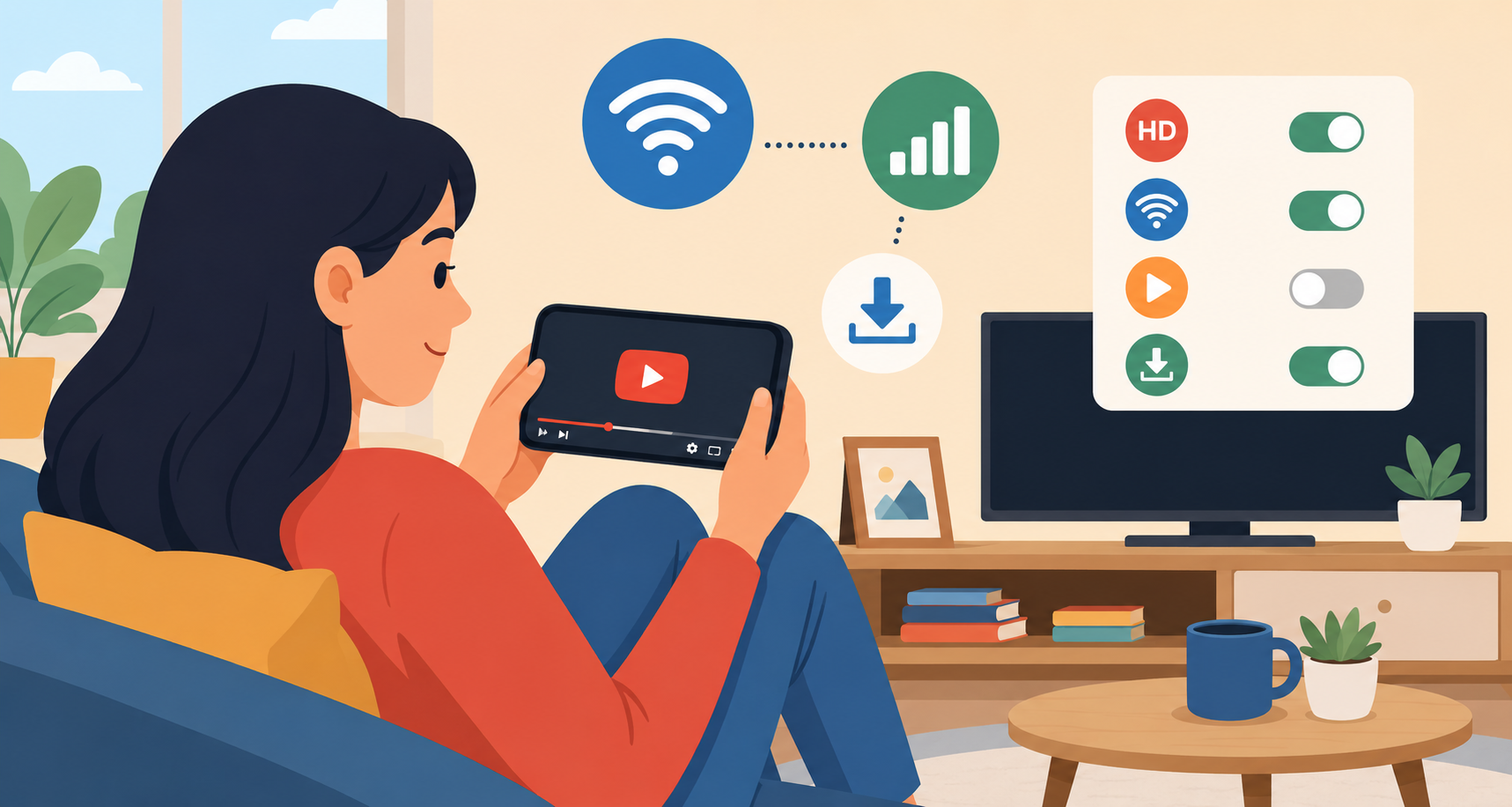
Streaming videos on YouTube is one of the fastest ways to burn through your mobile data. Between HD playback, autoplay, and endless scrolling, it’s easy to use several gigabytes without realizing it. Even many so-called unlimited plans come with speed caps or throttling once you hit a certain limit.
The good news is that you don’t have to stop watching your favorite content to cut down on data usage. With a few smart settings and viewing habits, you can enjoy YouTube while keeping your monthly data consumption under control.
If you’re trying to make the most of your internet plan, understanding how to optimize streaming apps is just as important as choosing the best high-speed internet options available in your area.
Why YouTube Uses So Much Data
YouTube automatically adjusts video quality based on your connection speed. On fast mobile networks, the app often streams in HD or even 4K resolution. While the viewing experience looks great, higher resolutions consume significantly more data.
Here’s a rough idea of how much data YouTube can use per hour:
| Video Quality | Estimated Data Usage |
|---|---|
| 144p | 90 MB |
| 360p | 300 MB |
| 480p | 700 MB |
| 720p HD | 1.5 GB |
| 1080p HD | 3 GB+ |
For anyone on a limited mobile plan, those numbers add up quickly.
Fortunately, YouTube includes several built-in settings designed to reduce data usage without ruining the viewing experience.
Adjust Your YouTube Streaming Settings
The quickest way to reduce data usage is to change your playback preferences inside the YouTube app.
Enable HD Playback on Wi-Fi Only
YouTube allows you to limit HD streaming to Wi-Fi connections. This setting automatically lowers video quality when using cellular data.
That means smoother playback, less buffering, and significantly lower data consumption.
How to Change YouTube Data Settings
Step 1: Open the YouTube App
Tap your profile picture in the top-right corner, then select Settings.
Step 2: Go to General Settings
Inside the settings menu, tap General.
From there:
Enable Play HD on Wi-Fi only
Enable Upload over Wi-Fi only
Disable Autoplay next video
These small changes can dramatically reduce your monthly data usage without changing how you normally use the app.
Lower Video Quality Manually
Even with YouTube’s automatic settings enabled, some videos may still stream at higher resolutions than necessary.
If you’re watching on mobile data, manually lowering the video quality is one of the easiest ways to save bandwidth.
Best Video Quality for Saving Data
For everyday viewing on a phone screen:
360p offers decent quality with low data usage
480p provides a good balance between clarity and efficiency
720p should only be used on Wi-Fi unless necessary
Most users barely notice the difference between 480p and 720p on smaller screens, especially when watching casually.
How to Change Video Quality
Open a video
Tap the gear icon
Select Quality
Choose a lower resolution manually
This simple adjustment can save gigabytes over the course of a month.
Turn Off Autoplay to Prevent Background Streaming
Autoplay is convenient, but it’s also one of the biggest hidden data drains on YouTube.
When autoplay is enabled, YouTube continuously loads and streams new videos automatically. Many users end up consuming data without even actively watching.
Disabling autoplay gives you more control over what loads next and prevents unnecessary data usage.
Benefits of Disabling Autoplay
Reduces accidental streaming
Prevents background data usage
Helps preserve battery life
Gives you more intentional viewing habits
If you mainly watch YouTube during commutes or while traveling, this setting alone can make a noticeable difference.
Download Videos for Offline Viewing
One of the most effective ways to save mobile data is downloading videos ahead of time while connected to Wi-Fi.
Users with YouTube Premium can save full videos, playlists, and music directly to their devices for offline playback.
Why Offline Viewing Saves Data
Downloaded videos use zero mobile data once stored locally. This is especially helpful for:
Daily commuters
Travelers
Students
Frequent streamers
Families sharing limited data plans
Instead of repeatedly streaming the same content, you only download it once.
If you regularly stream on public networks, understanding the differences between public Wi-Fi and safer mobile data connections can also help protect your privacy while saving bandwidth.
Use Wi-Fi Whenever Possible
Streaming YouTube over Wi-Fi instead of cellular data remains the easiest way to preserve your mobile allowance.
Whenever possible:
Download videos at home
Stream over trusted Wi-Fi networks
Avoid HD playback on cellular connections
Pause large uploads until connected to Wi-Fi
If you spend a lot of time outside the house, planning your downloads before leaving can save a surprising amount of data.
Restrict Cellular Data for YouTube
If you really want to control your usage, you can block YouTube from using cellular data entirely.
This forces the app to work only when connected to Wi-Fi.
On iPhone
Open Settings
Tap Cellular
Scroll to YouTube
Toggle cellular access off
On Android
Open Settings
Tap Apps
Select YouTube
Open Mobile Data & Wi-Fi
Disable background or mobile data access
This option is especially useful for children’s devices or shared family plans.
Use YouTube’s Data Saver Mode
YouTube also offers built-in data-saving features on many devices.
Depending on your app version, you may see options like:
Data Saver
Reduced Video Quality
Limited Mobile Data Usage
These settings help compress streaming activity automatically when using cellular networks.
Why Data Saver Helps
Data Saver modes reduce:
Streaming resolution
Preloaded content
Background network activity
The result is lower overall consumption without fully changing your viewing experience.
Avoid Streaming Over Weak Mobile Signals
Poor cellular signals often increase data usage because videos constantly buffer and reload.
When your connection is unstable:
YouTube may repeatedly attempt higher-quality playback
Videos reload segments multiple times
Streaming becomes less efficient overall
Whenever possible, wait for a stronger signal or switch to Wi-Fi before watching long videos.
Monitor Your Monthly Data Usage
Most users underestimate how much data streaming apps consume.
Checking your usage regularly helps you identify patterns before exceeding your limit.
Ways to Track Data Usage
You can monitor consumption through:
Your carrier’s mobile app
iPhone Cellular settings
Android Data Usage settings
Third-party data tracking apps
Tracking usage for just one week often reveals where most of your data goes.
Consider a Better Internet Plan
If streaming is a major part of your daily routine, it may be worth upgrading your internet setup rather than constantly limiting usage.
A stronger home internet connection can reduce dependence on mobile data entirely, especially for households that stream frequently.
Reliable broadband also improves:
Download speeds
Streaming quality
Smart TV performance
Video call stability
Multi-device usage
Finding the right connection starts with comparing high-speed internet providers available near your location.
Smart Streaming Habits Make a Big Difference
Saving data on YouTube doesn’t mean giving up your favorite creators, playlists, or late-night video sessions.
Most people can dramatically reduce mobile data usage simply by:
Lowering playback quality
Turning off autoplay
Downloading videos on Wi-Fi
Restricting background streaming
Using built-in data-saving settings
These adjustments only take a few minutes to set up, but they can help you avoid overage charges, throttled speeds, and frustrating slowdowns later in the month.
Frequently Asked Questions
Does watching YouTube in HD use a lot of data?
Yes. HD streaming can consume between 1.5 GB and 3 GB per hour depending on the resolution and bitrate.
What is the best YouTube quality setting for saving data?
480p is usually the best balance between video quality and low data consumption on mobile devices.
Does autoplay increase data usage?
Absolutely. Autoplay continuously loads new videos, often without users realizing how much data is being consumed.
Can I watch YouTube without using mobile data?
Yes. You can download videos while connected to Wi-Fi or disable cellular access for the app entirely.
Does YouTube Premium help save data?
Yes. YouTube Premium allows offline downloads, which helps reduce repeated streaming over mobile networks.
Related Posts
 Technology
Wifi
mobile phone plans
Technology
Wifi
mobile phone plans
What Is a Mobile Hotspot and How Does It Work?
A mobile hotspot is a portable feature or device that converts a cellular data connection (like 4G LTE or 5G) into a private Wi-Fi network
 Broadband Deals
cable deal
Broadband Deals
cable deal
Xfinity Cable Package Deals That Actually Deliver Value
Discover the best Xfinity cable package deals, compare internet and TV bundles, understand pricing, and choose the right plan for your home and budget.
 Broadband Deals
What Is TDS Internet and Is It Right for Your Home?
Learn what TDS Internet is, how it works, available plans, pricing, speeds, benefits, and how it compares with other internet providers.
 Internet Bundles
Bundle Internet, TV, and Phone Without Overpaying
Learn how to bundle internet, TV, and phone services for the best value. Compare plans, avoid hidden fees, and choose the right package for your home.
 Broadband Deals
cable deal
cheap internet deals
Broadband Deals
cable deal
cheap internet deals
Chicago Neighborhood Internet Guide for Better Connectivity
Explore internet options across Chicago neighborhoods, compare providers, understand speeds, costs, and find the best broadband solution.