How to Check and Fix Ethernet Port Problems
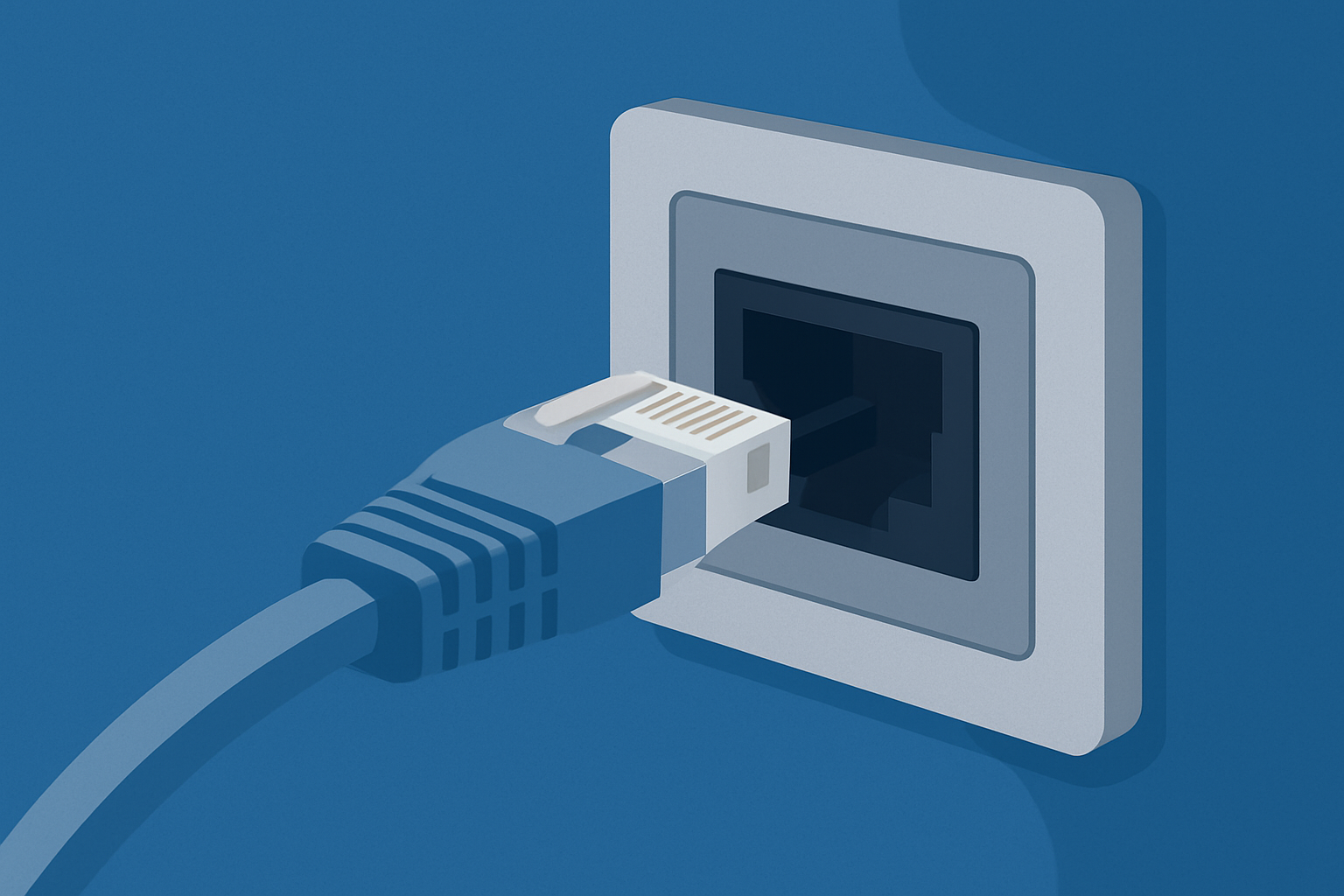
A reliable wired internet connection can make everything smoother—from streaming and gaming to conference calls and large downloads. But when your Ethernet port stops responding or becomes unreliable, it can leave you guessing whether the issue lies in the port, the cable, or the device itself.
Fortunately, troubleshooting Ethernet port issues is easier than you might think. With a few simple checks, you can narrow down the problem and often fix it without professional help.
This guide walks you through the most important steps to diagnose port issues, understand what causes them, and restore a stable wired connection quickly and confidently.
Why Ethernet Ports Matter So Much
Ethernet ports provide a stable, fast connection that’s usually more reliable than Wi-Fi. They’re built into desktops, laptops, gaming consoles, smart TVs, and many routers.
Understanding how a port works—and the common reasons it stops working—helps you troubleshoot more effectively.
If you’re comparing performance differences between connection types, taking a look at the ethernet difference can also clarify what to expect from wired vs online connections.
Signs Your Ethernet Port May Be Failing
Some Ethernet port problems are easy to spot, while others take a bit more investigation.
Check for Visible Damage First
Before diving into deeper diagnostics, start with a physical inspection. Ethernet ports rely on small metal pins inside the connector. If these pins are misaligned, bent, pushed inward, or broken, the port won’t function properly.
Look for:
- Dust or debris trapped inside
- A loose connection when you insert the plug
- Pins that look uneven or recessed
- Visible cracks around the port housing
Physical wear is especially common when switching between older setups, such as when converting dsl ethernet connections to newer ones.
Trace the Cable and Check Line Integrity
Sometimes the port is fine, but the cable delivering the signal isn’t. That’s why the next step is following the cable from your device all the way to your router or modem.
Inspect your line for:
- Harsh bends
- Exposed wiring
- Loose connectors
- Frayed ends
Then, look at the router’s port light. A solid green light usually indicates a successful link, while flickering or amber lights may signal negotiation issues, speed mismatches, or an unstable connection.
If symptoms point to a cable issue, it may relate to the performance limits of an ethernet cable rather than the port itself.
Test a Different Port or Device
A reliable way to isolate the issue is to test the same Ethernet cable with:
- A different port on the router
- Another laptop or desktop
- A switch or secondary router
If the cable works elsewhere, your original port is most likely the problem. If it fails everywhere, the cable or router may be the culprit.
This process is especially helpful when evaluating how wired setups compare to wired wireless performance on different devices and hardware.
Don’t Ignore Software and System Issues
Ethernet problems aren’t always caused by physical hardware. Operating systems, drivers, or power-management settings can also disable Ethernet functionality.
Check for:
- Disabled network adapters
- Outdated or corrupt network drivers
- Power-saving settings that shut off LAN ports
- Incorrect IP configurations
- Firewalls blocking LAN traffic
On Windows, Device Manager is the fastest way to verify whether your Ethernet adapter is detected, functioning, or in error mode.
If you want a performance comparison to validate whether the slowdown is hardware or settings related, understanding wifi ethernet differences can provide context.
Why Ethernet Ports Rarely Fail (But Still Can)
Ethernet ports are durable by design. They’re meant to handle frequent use, minor stress, and constant uptime. True port failure is uncommon, but it can still happen.
Some causes include:
- Electrical surges
- Forcefully inserted connectors
- Liquid exposure
- Motherboard damage
- Manufacturing defects
If your troubleshooting points to internal failure, using a USB-to-Ethernet adapter is a quick workaround until you can get professional repair.
When to Call a Technician
You’ve tested the cable, inspected the port, updated drivers, switched ports, and compared devices—yet the issue remains. At this point, professional assistance may be the fastest option.
Call a technician if you notice:
- A port that wiggles or feels loose inside
- Burn marks or corrosion
- Ports heating unusually during use
- Frequent connection drops across all cables
- The device no longer recognizing any Ethernet functionality
Internal component damage often requires specialized tools and skills.
Preventing Ethernet Port Problems
The best way to avoid Ethernet port problems is through simple maintenance habits:
- Avoid yanking or bending cables
- Keep ports clean and dust-free
- Use high-quality Ethernet cables
- Protect your devices with surge protectors
- Reduce strain by avoiding sharp bends near the port
These practices reduce long-term wear and prevent electrical or mechanical stress.
Final Thoughts
Ethernet port issues can be annoying, but the good news is most problems are easy to diagnose with a clear, step-by-step approach. Whether the culprit is a bad cable, a misaligned pin, a disabled driver, or a failing port, you now have the tools to pinpoint the cause confidently.
Wired connections are reliable, fast, and consistent—and with the right care, your Ethernet port can last for years. When problems arise, a little troubleshooting usually goes a long way.
Related Posts
 Technology
Wifi
mobile phone plans
Technology
Wifi
mobile phone plans
What Is a Mobile Hotspot and How Does It Work?
A mobile hotspot is a portable feature or device that converts a cellular data connection (like 4G LTE or 5G) into a private Wi-Fi network
 Broadband Deals
cable deal
Broadband Deals
cable deal
Xfinity Cable Package Deals That Actually Deliver Value
Discover the best Xfinity cable package deals, compare internet and TV bundles, understand pricing, and choose the right plan for your home and budget.
 Broadband Deals
What Is TDS Internet and Is It Right for Your Home?
Learn what TDS Internet is, how it works, available plans, pricing, speeds, benefits, and how it compares with other internet providers.
 Internet Bundles
Bundle Internet, TV, and Phone Without Overpaying
Learn how to bundle internet, TV, and phone services for the best value. Compare plans, avoid hidden fees, and choose the right package for your home.
 Broadband Deals
cable deal
cheap internet deals
Broadband Deals
cable deal
cheap internet deals
Chicago Neighborhood Internet Guide for Better Connectivity
Explore internet options across Chicago neighborhoods, compare providers, understand speeds, costs, and find the best broadband solution.