What’s a Good Internet Speed for Working From Home?

Working from home has moved from a temporary shift to a long-term reality for millions of professionals. And while a comfortable chair and quiet workspace matter, nothing impacts your daily efficiency more than your internet connection. If you’ve ever sat through a frozen video call or struggled to upload a file, you already know how frustrating slow speeds can be.
So, what actually counts as a “good” internet speed for working from home? The answer depends on your job, the number of devices in your home, and how you use the internet throughout the day. In this guide, we’ll break it down in simple, practical terms so you can choose the right speed without overpaying—or underperforming.
Why Internet Speed Matters More Than Ever
A stable and fast connection is the backbone of modern work setups. Whether you’re attending virtual meetings, transferring files, or collaborating in real time, your internet determines how smoothly everything runs.
Even small interruptions can add up. Lagging video calls, delayed emails, or buffering cloud apps waste time and reduce productivity. That’s why understanding your speed requirements is essential—not just for convenience, but for consistent performance.
What Does Internet Speed Actually Mean?
Before we dive into numbers, let’s clarify what internet speed really refers to.
Internet speed is typically measured in Mbps (megabits per second), indicating how fast data is downloaded or uploaded. Download speed affects how quickly you can load websites, stream videos, or receive files. Upload speed impacts how fast you send emails, upload documents, or join video calls.
A balanced connection—good download and upload speeds—is key for remote work.
How Much Speed Do You Really Need?
This is the question most people ask: how many mbps do i need?
The answer depends on your daily work activities. Here’s a practical breakdown:
Basic Work (5–25 Mbps)
If your work involves:
Email communication
Browsing websites
Occasional video calls
Then 10–25 Mbps is usually enough. However, this assumes you’re the only user or have minimal device usage at home.
Moderate Work (25–100 Mbps)
Ideal for:
Frequent video conferencing (Zoom, Teams)
Cloud-based tools like Google Drive or Dropbox
Multiple tabs and apps running simultaneously
This range offers a smoother experience, especially if more than one person is working or studying at home.
Heavy Work (100–500 Mbps)
Best suited for:
Large file uploads/downloads
Video editing or design work
Streaming in high resolution while working
Multiple users and devices
This level ensures minimal interruptions, even during peak usage hours.
Professional/Advanced Use (500+ Mbps)
If your work involves:
Data-heavy applications
Live broadcasting
High-end collaboration tools
Then higher speeds give you a competitive edge. While not necessary for everyone, it ensures maximum efficiency.
Download vs Upload Speed: Why Both Matter
Many people focus only on download speed, but upload speed is just as important—especially for remote work.
When Upload Speed Matters Most:
Sending large files
Hosting video calls
Using cloud backups
A connection with at least 10–20 Mbps upload speed is recommended for smooth communication.
How to Check Your Current Internet Speed
If you’re unsure about your current connection, running an interenet speed test is the quickest way to find out. It shows both your download and upload speeds in real time.
Many users often search what is my interenet speed when they experience lag or delays. Testing your speed regularly helps you identify whether your plan is meeting your needs.
If your results are inconsistent, it might be time to upgrade or troubleshoot your setup.
Factors That Affect Internet Speed at Home
Even with a high-speed plan, several factors can impact performance.
1. Number of Connected Devices
More devices mean shared bandwidth. Smartphones, smart TVs, and IoT devices all consume data.
2. Wi-Fi Signal Strength
Distance from the router, walls, and interference can weaken your connection.
3. Type of Connection
Fiber is typically faster and more reliable than DSL or cable.
4. Time of Day
Peak hours can slow down speeds due to network congestion.
Choosing the Right Plan for Your Needs
Selecting the right plan isn’t just about speed—it’s about value and reliability.
If you’re comparing options, exploring different best internet providers can help you find a balance between performance and cost.
Look for providers that offer:
Consistent speeds (not just “up to” claims)
Strong customer support
Flexible plans
If you’re ready to upgrade, you can explore available internet service providers that match your work-from-home requirements.
Tips to Improve Your Internet Speed
Even before upgrading your plan, there are ways to optimize your existing connection.
Upgrade Your Router
Older routers can bottleneck your speed. A modern dual-band or mesh system can significantly improve performance.
Position Your Router Strategically
Place it centrally and away from obstructions.
Limit Background Usage
Close unused apps and disconnect idle devices.
Use Wired Connections
Ethernet connections are more stable than Wi-Fi for critical tasks.
Understanding Bandwidth and Its Role
Bandwidth refers to the maximum amount of data your connection can handle at once. Higher bandwidth allows more devices to operate smoothly without slowing each other down.
If you’re unsure how this impacts your work, this guide on internet bandwidth explains it in a practical way.
Internet Speed and Productivity
A fast connection doesn’t just save time—it improves how you work.
With fewer interruptions:
Meetings run smoother
Files upload instantly
Applications respond faster
If you’re looking for ways to boost work productivity, combining a reliable connection with smart internet habits can make a noticeable difference.
Common Signs Your Internet Speed Isn’t Enough
You might need an upgrade if you experience:
Frequent buffering during video calls
Slow file uploads
Lag in cloud applications
Disconnections or dropped calls
These are clear indicators that your current plan may not meet your workload demands.
FAQs
1. What is a good internet speed for working from home?
A good internet speed is typically between 25 Mbps and 100 Mbps for most remote work tasks.
2. How many Mbps do I need for video calls?
You need at least 10–20 Mbps for smooth and uninterrupted video conferencing.
3. Does upload speed matter for remote work?
Yes, upload speed is important for video calls, file sharing, and cloud-based work.
4. How can I check my internet speed?
You can check your internet speed using an online speed test tool in just a few seconds.
5. What affects internet speed at home?
Factors include the number of devices, Wi-Fi signal strength, network type, and peak usage times.
Final Thoughts: Finding the Right Balance
There’s no one-size-fits-all answer to what counts as a good internet speed for working from home. It depends on how you work, how many people share your connection, and how heavily you rely on online tools.
The key is to match your internet plan with your actual usage—not just guess or go for the cheapest option. A slightly higher investment in speed can save hours of frustration and significantly improve your workflow.
If you’ve been struggling with slow connections or inconsistent performance, now is the right time to evaluate your setup and make a change that supports your work—not slows it down.
Related Posts
 Broadband Deals
cable deal
cheap internet deals
Technology
Broadband Deals
cable deal
cheap internet deals
Technology
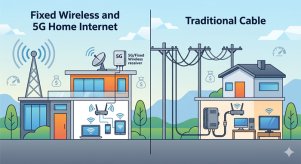
Fixed Wireless vs 5G Home Internet: Better Than Cable?
Compare fixed wireless and 5G home internet with cable internet. Learn the pros, cons, speeds, costs, and which option fits your home best.
 Regulations
Technology
Regulations
Technology
What Is Powerline Internet? Everything You Need to Know
Learn what Powerline Internet is, how it works, its pros and cons, speed, setup, and whether it’s the best solution for extending reliable internet at home.
 Broadband Deals
cheap internet plans
Broadband Deals
cheap internet plans
Spectrum Internet Cost After 12 Months Explained
Learn how much Spectrum Internet costs after promotional pricing ends. Discover standard rates, billing factors, and ways to reduce monthly costs.
 Internet Bundles
Broadband Deals
Internet Bundles
Broadband Deals
Best Rural Internet Providers to Keep You Connected in 2026
Discover the best rural internet providers in 2026. Compare Xfinity, CenturyLink, and Viasat by speed, pricing, reliability, and coverage.
 Broadband Deals
cheap internet deals
cheap internet plans
Broadband Deals
cheap internet deals
cheap internet plans
Portland ISP Providers: How to Find the Best Internet Service
Compare Portland ISP providers, internet speeds, pricing, and availability. Learn how to choose the best internet service for your home or business.