10 Simple Internet Tips for Safer, Faster Browsing
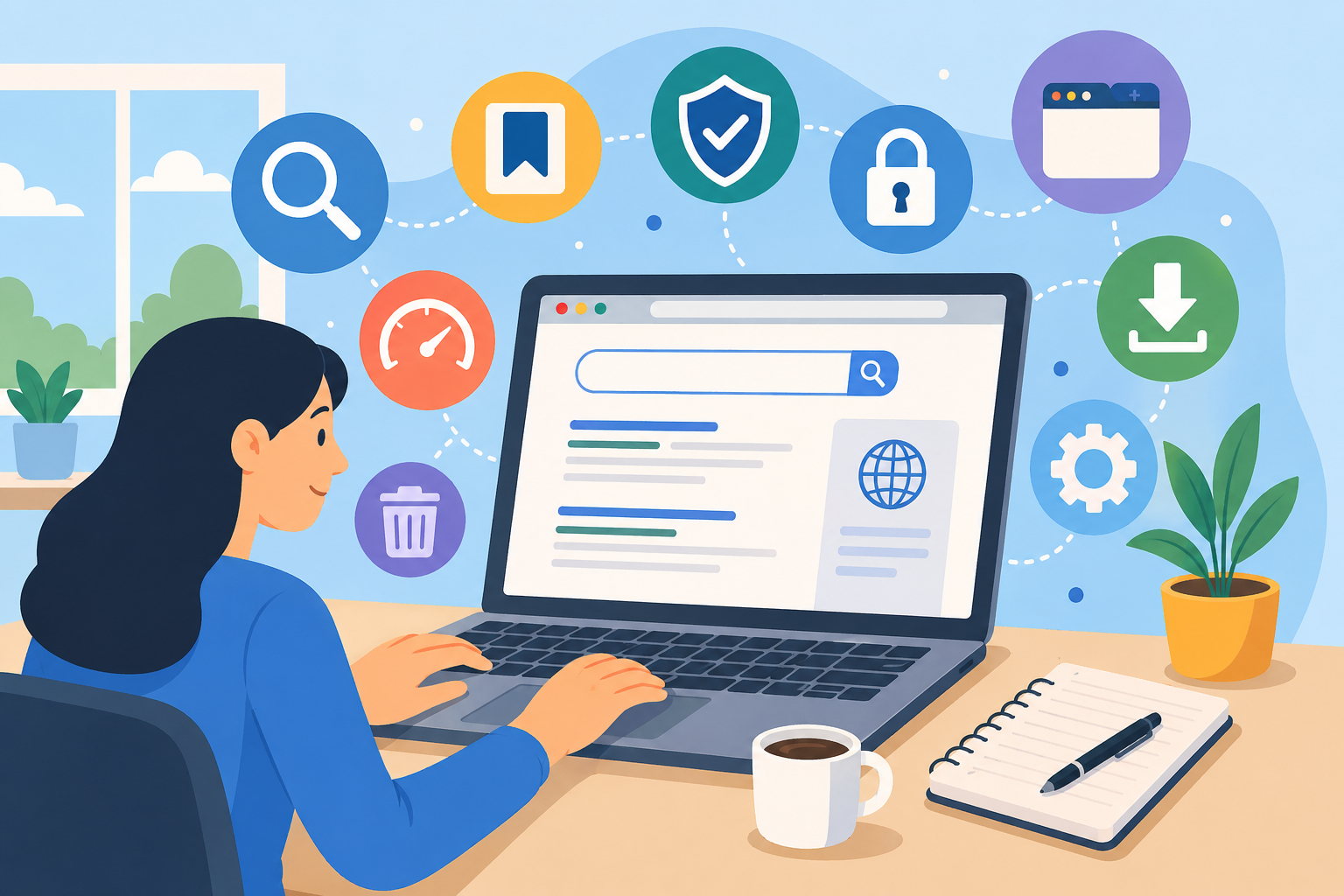
The internet is part of everyday life, but using it well takes more than opening a browser and typing a few words. Better internet browsing habits can help you find information faster, stay safer online, protect your privacy, and avoid common mistakes that slow you down.
Whether you use the web for work, school, shopping, research, entertainment, or staying connected, small changes can make a big difference. These internet tips will help you browse more confidently, save time, and keep your online experience smoother from start to finish.
1. Use Search Engines More Effectively
Search engines are still one of the best tools for finding information online. Instead of guessing a full website address, type what you need into a search engine like Google for quick online information searches or Bing for finding relevant websites online.
The key is to search with clear, specific phrases. For example, instead of typing “weather,” search “weather in Manila this weekend.” Instead of “laptop problem,” search “how to fix laptop overheating while charging.”
More specific searches usually lead to better results.
You can also use quotation marks around exact phrases. Searching "best internet safety tips" tells the search engine to look for that exact wording. This is useful when you are looking for a specific article, quote, product, or error message.
At the same time, remember that search engines may collect information about your searches. To improve online privacy, regularly clear your cookies, browsing history, and browser cache. Clearing your cache can also fix temporary website loading problems.
2. Bookmark Useful Websites
It is easy to find a great website and forget where it was later. Bookmarks solve that problem by saving websites you want to revisit.
Most browsers let you bookmark a page by clicking the star icon near the address bar. You can also press Ctrl + D on Windows or Command + D on Mac to save the current page.
Bookmarks are especially useful for websites you visit often, such as banking pages, work dashboards, research sources, online tools, or learning platforms.
To keep your bookmarks organized, create folders. For example, you might use folders like:
Work tools
Online shopping
Bills and banking
Learning resources
Travel planning
Recipes
A tidy bookmark system saves time and prevents you from repeatedly searching for the same websites.
3. Learn Browser Shortcuts That Save Time
Browser shortcuts make internet browsing faster and easier. Instead of clicking through menus, you can complete common actions with a few keys.
Here are some of the most useful browser shortcuts:
Ctrl + F: Search for a word or phrase on a page
Ctrl + D: Bookmark the current page
Ctrl + P: Print the current page
Ctrl + T: Open a new tab
Ctrl + W: Close the current tab
Ctrl + +: Zoom in
Ctrl + -: Zoom out
Alt + Home: Return to your homepage
F5: Refresh the page
F11: Switch between full-screen and regular view
These shortcuts may seem small, but they add up quickly. If you spend a lot of time online, learning just a few can make browsing feel much smoother.
4. Keep Your Browser Updated
An outdated browser can slow down your internet experience and expose you to security risks. Browser updates often include speed improvements, bug fixes, and protection against new online threats.
Modern browsers usually update automatically, but it is still smart to check from time to time. If your browser shows a message asking you to update, do not ignore it for weeks.
Updated browsers also support newer website features. If a page looks broken, loads slowly, or refuses to work, an outdated browser may be the reason.
Popular browsers such as Chrome, Firefox, Safari, Edge, and Opera all release updates regularly. Keeping yours current is one of the easiest ways to improve internet safety and performance.
5. Use Tabs to Stay Organized
Tabbed browsing lets you open multiple websites inside one browser window. This keeps your desktop cleaner and makes it easier to switch between pages.
You can open a new tab by clicking the plus symbol near the top of your browser or pressing Ctrl + T.
Tabs are helpful when comparing products, researching a topic, checking email while working, or keeping several tools open at once. However, too many tabs can become overwhelming.
A good habit is to close tabs you no longer need. You can also right-click a tab to pin important websites, duplicate a page, or close all tabs to the right.
Some browsers also allow tab groups. This is useful if you want to separate work tabs from personal tabs or group research pages by category.
6. Update Your Antivirus Software
Good antivirus software protects your device from malware, spyware, viruses, and other unwanted programs. But antivirus protection only works well when it is updated.
New threats appear constantly, so your antivirus software needs current definitions to recognize them. If you ignore updates, your computer may be less protected than you think.
Set your antivirus program to update automatically whenever possible. Also, run regular scans to check for hidden threats.
Antivirus software is not a replacement for careful browsing, though. Avoid suspicious downloads, unknown email attachments, fake pop-ups, and websites that look untrustworthy.
Strong online safety comes from using protective software and smart browsing habits together.
7. Be Careful With Browser Extensions and Plugins
Browser extensions can be useful. They can block ads, manage passwords, check grammar, take screenshots, or improve productivity.
However, not every extension is safe. Some may track your browsing activity, slow down your browser, or request more permissions than they need.
Before installing any browser extension, check the developer, reviews, update history, and permissions. If an extension asks to read and change data on every website you visit, make sure it truly needs that access.
It is also smart to remove extensions you no longer use. The fewer extensions you have, the fewer potential security risks you carry.
Older browser plugins, such as Flash, are no longer commonly needed and may create security problems. Modern websites usually work without them.
8. Use the Tab Key When Filling Out Forms
When filling out online forms, you do not always need to reach for your mouse. Pressing the Tab key moves you to the next field automatically.
This is helpful when entering your name, email, phone number, address, or payment details. You can move through a form quickly without clicking each box one by one.
If you move too far, press Shift + Tab to go back to the previous field.
You can also use the arrow keys to move through dropdown menus. These simple keyboard habits can make online forms much faster to complete.
Just remember to review your information before submitting any form, especially when entering sensitive details.
9. Check URLs Before You Click
A safe browsing habit is to look closely at website addresses before clicking or entering personal information.
Secure websites usually begin with https://. The “s” means the connection is encrypted. This is especially important for banking, shopping, email, and login pages.
Also check for misspellings. Cybercriminals often create fake websites with addresses that look almost identical to real ones. For example, one extra letter or missing character can lead you to a harmful website.
Be cautious with links in emails, messages, and pop-ups. If something feels suspicious, type the website address directly into your browser instead of clicking the link.
You usually do not need to type http:// or www. manually. Most browsers can load websites when you enter the main domain name. Still, always confirm that the final page is the correct and secure website.
10. Search Directly From Your Browser
Most browsers allow you to search directly from the address bar. This means you do not need to visit a search engine homepage first.
Simply type your search phrase into the address bar and press Enter. Your browser will send the search to your default search engine.
You can usually change your default search engine in your browser settings. Some people prefer Google, while others prefer Bing, DuckDuckGo, Yahoo, or another option.
This small habit saves time and makes browsing feel more seamless.
Many browsers also let you search specific websites from the address bar. Depending on your settings, you may be able to search YouTube, Amazon, Wikipedia, or other sites directly.
11. Protect Your Privacy While Browsing
Online privacy matters more than ever. Websites, advertisers, apps, and search engines may collect data about your activity.
To reduce tracking, clear cookies regularly, use privacy-focused browser settings, and review website permissions. You can also block third-party cookies in many modern browsers.
Private or incognito mode can help keep your browsing history off your device, but it does not make you completely anonymous online. Your internet provider, employer, school, or visited websites may still see activity in some cases.
For stronger privacy, consider using a trusted VPN, especially when using public Wi-Fi. A VPN can help encrypt your connection and reduce exposure on unsecured networks.
Privacy is not about hiding everything. It is about having better control over your personal information.
12. Use Strong Passwords and a Password Manager
Weak passwords are one of the biggest online security risks. Passwords like “123456,” “password,” or your birthday are easy to guess.
Use long, unique passwords for every important account. A strong password should include a mix of letters, numbers, and symbols.
The problem is that strong passwords are hard to remember. That is where a password manager helps. It stores your passwords securely and can generate strong ones for you.
This means you only need to remember one strong master password.
Also, turn on two-factor authentication whenever possible. This adds an extra layer of protection by requiring a code, app confirmation, or security key in addition to your password.
13. Be Smart With Downloads
Downloading files is common, but it can also be risky. Malware often hides inside fake software installers, cracked programs, suspicious documents, or unexpected attachments.
Only download files from trusted websites. Be especially careful with free tools that seem too good to be true.
Before opening a downloaded file, check the file name and extension. For example, a document should not unexpectedly end in .exe.
Your browser may warn you about unsafe downloads. Take those warnings seriously.
If you are unsure about a file, scan it with antivirus software before opening it.
14. Manage Your Browser Cache and Cookies
Your browser cache stores website files so pages can load faster in the future. Cookies store small bits of information, such as login sessions, preferences, and tracking data.
Both can be useful, but they can also cause problems. Old cache files may stop a website from loading correctly. Too many cookies can affect privacy and performance.
Clearing your cache and cookies can fix many common issues, including:
Pages not loading properly
Login problems
Outdated website content
Slow browser performance
Privacy concerns
You do not have to clear everything every day. But doing it regularly helps keep your browser clean and reliable.
15. Build Better Internet Habits Over Time
Better internet browsing is not about memorizing every shortcut or setting. It is about building small habits that make your online life safer and easier.
Start with the basics: update your browser, check URLs, use strong passwords, bookmark important websites, and keep your antivirus current.
Then improve your workflow with tabs, keyboard shortcuts, direct browser search, and organized bookmarks.
As you become more comfortable, pay closer attention to privacy settings, downloads, extensions, and suspicious links.
The more intentional you are online, the less likely you are to waste time, lose information, or fall for avoidable risks.
FAQ
What is the easiest way to browse the internet faster?
The easiest way is to use browser shortcuts, search directly from the address bar, bookmark frequently visited websites, and keep your browser updated.
How can I stay safe while browsing online?
Check URLs carefully, use secure websites with https, avoid suspicious downloads, keep antivirus software updated, and use strong passwords with two-factor authentication.
Should I clear my browser history and cookies?
Yes, clearing your browser history, cookies, and cache regularly can improve privacy and fix common website loading issues.
Are browser extensions safe to use?
Many browser extensions are safe, but you should only install trusted extensions with good reviews and reasonable permissions. Remove extensions you no longer use.
Do I still need antivirus software?
Yes, antivirus software remains useful for protecting your device from malware, suspicious downloads, and harmful files, especially when combined with safe browsing habits.
Conclusion
The internet becomes much easier to use when you know how to browse with purpose. Simple habits like using better search phrases, organizing bookmarks, updating your browser, checking URLs, and protecting your privacy can improve your entire online experience.
You do not need to become a technical expert. Start with a few practical changes, use them consistently, and build from there. Over time, safer and faster browsing will feel natural.
Related Posts
 Broadband Deals
cheap internet deals
Broadband Deals
cheap internet deals
Top 5 States for Remote Workers With Best Internet Access
Discover the top 5 U.S. states offering exceptional internet coverage, fast broadband, and ideal conditions for remote workers and digital professionals.
 Wifi
Wifi
10 Reasons Your Wi-Fi Keeps Disconnecting at Home
Discover the top 10 reasons your Wi-Fi keeps disconnecting and learn practical solutions to improve wireless stability, speed, and coverage.
 cheap internet deals
Broadband Deals
Wifi
cheap internet deals
Broadband Deals
Wifi
Orlando’s Best ISP Options for Fast, Reliable Internet
Compare Orlando internet providers, speeds, pricing, fiber, cable, and wireless options to find the best ISP for your home or business.
 Safety
How to Shop Online Safely and Avoid Common Scams
Learn how to shop safely online by avoiding scams, protecting personal data, securing payments, and building smart long-term shopping habits.
 Regulations
Safety
Regulations
Safety
What Is Background Data Usage? Pros and Cons Explained
Learn what background data usage is, its benefits and drawbacks, how it affects internet consumption, and practical ways to reduce data usage.