How to Manage Smartphone Storage Space?
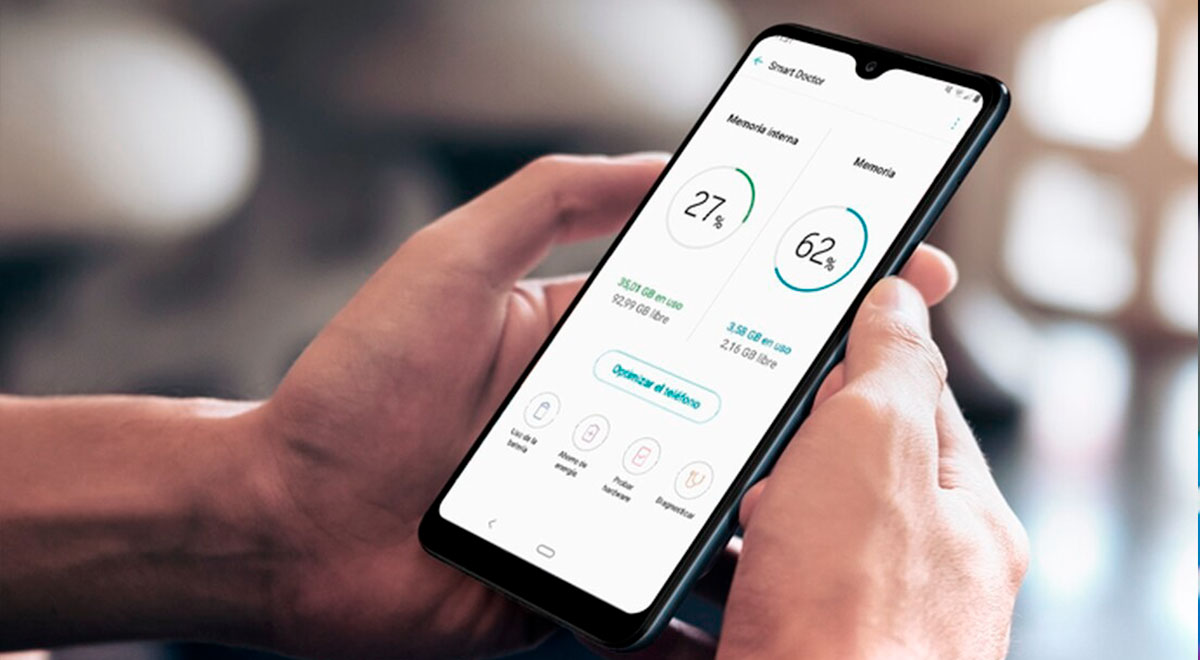
How to Manage Smartphone Storage Space The Smart Way: It's happened to all of us at some point. We use our smartphones to save all of our photos, movies, music, podcasts, and other media, only to be confronted with the dreaded "Storage is Full" message on our home screens. You may clear up a lot of space without jeopardizing your personal data before you start throwing away your favorite images.
We'll teach you how to free up space on your Android and iPhone devices and make better use of the capacity you currently have in this week's tip.
Find out what's taking up too much space.
It's critical to understand which types of data are using up the most space on your device so you can determine which files and apps you may safely delete and which you should keep.
-
For Android users, navigate to Settings > Storage or Settings > Battery and device care > Storage, depending on your version or device.
Users of Android devices will also see a graph that shows which files are taking up space on their devices. You should be able to get more information by tapping on each category. Many Android users will be able to use the built-in "Free Up Space" function, which will guide you through the process of deleting garbage files, huge photographs, and unneeded applications.
-
Go to Settings > General > iPhone Storage if you're using an iPhone.
You'll see how much space is available on your iPhone, a chart showing how much storage each data category is taking up, and an organized list of all the apps that are using up the most space on your iPhone. Apple may also make recommendations to dump unneeded programs, examine attachments, or erase outdated conversations that are taking up a lot of space on this screen.
Delete your cache.
The small bits of information that stay on your device after you visit a website are known as cached data. After a while, this temporary data can accumulate and take up a lot of space on your phone.
To delete the cache in Safari on Apple devices, click on Settings > Safari > Clear History and Website Data, then agree.
Open the Chrome app on Android, click three dots for More > History > Erase browsing data, and then follow the instructions to clear cookies, site data, cached pictures, and files.
Related: What is An Internet Cookie?
Backup your files to the cloud
Backing up your smartphone on a regular basis is always a good idea, especially in the case that it is damaged, lost, or stolen. It's also a terrific technique to make more space on your phone.
You can erase things on your device — say, those old photos from your college days — but you'll always have access to them through your backup if you back up your data to an online cloud service.
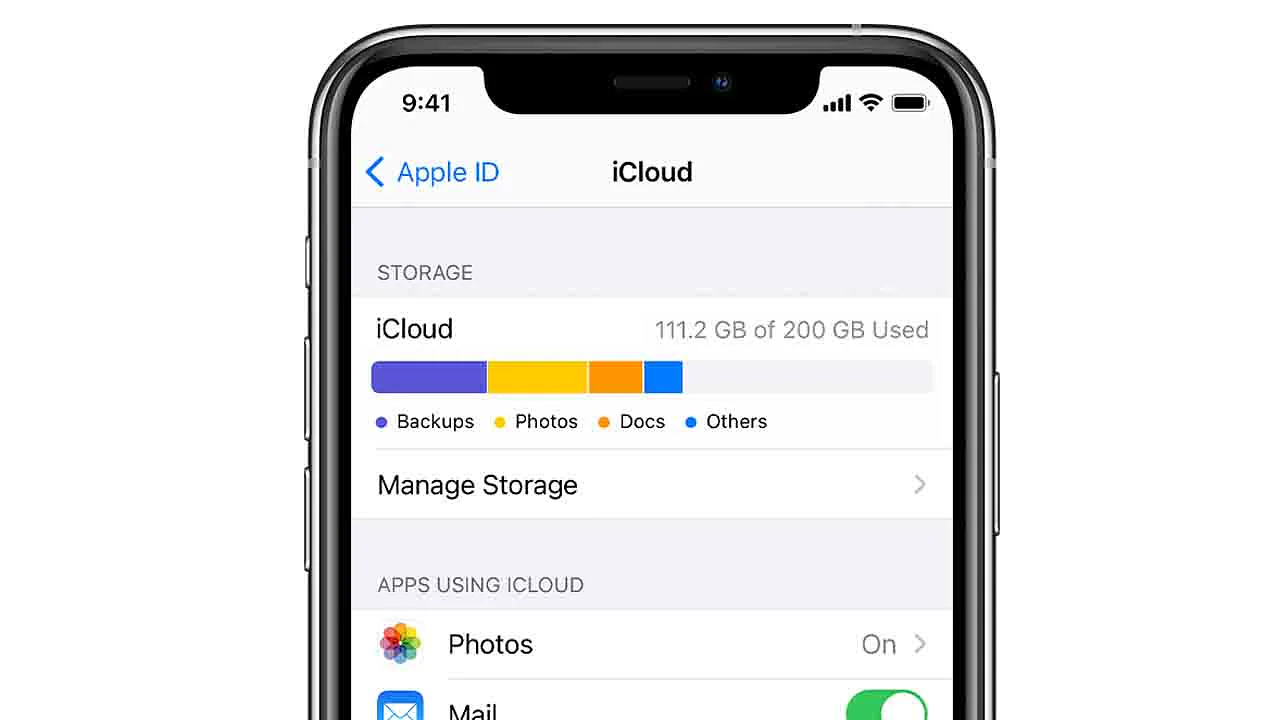
Both Apple's iCloud and Google's OneDrive provide a limited amount of free cloud storage, but if you have a lot of images and other material to keep, you might consider paying a small charge to upgrade your storage plan. You can then erase the data that's taking up all that space once it's been backed up.
Optimize your photo and video settings
The camera and video quality on newer cellphones is fantastic. As a result of the higher quality, the file sizes have shrunk dramatically.
Fortunately, you don't have to keep your HD photographs and movies on your device. Instead, you can optimize storage on your smartphone to a lower quality version (after all, you're viewing it on a small screen), but your original, high-quality file is backed up in the cloud and accessible at any time. This could also be a good time to look through and eliminate some of those blurry photographs!
-
For iPhone users, go to Settings > Photos > Optimize iPhone Storage.
-
For Android users, go to the settings for Google Photos and choose “Free up space”
Related: Wi-Fi Calling Explained: Everything You Need To Know
Delete any apps that are no longer in use.
Apps on your phone often store the majority of the data on your device, and apps you no longer use could be taking up a lot of space.
As described in the previous step, go to your device's storage settings and look through the list of programs. You'll probably see a few apps you don't use, so feel free to tap on them and uninstall them. You may always re-download the app if you need it, but keep in mind that some of the data for that app may be lost if you do so, so choose carefully.
Related Posts
 Safety
What Not to Do And Internet Safety Tips To Protect You Online
Learn what not to do online and discover practical internet safety tips to protect your personal data, devices, and accounts from cyber threats.
 cheap internet deals
Cheap Internet Plans in Florida: Find the Right Fit Fast
Discover how to find cheap internet plans in Florida based on your lifestyle, location, and speed needs. Compare providers and choose the best plan today.
 cheap internet deals
Cheap Internet Plans vs Premium Plans
Cheap vs premium internet plans explained. Learn the key differences in speed, data limits, reliability, and pricing to choose the best plan for your home.
 Subscription
cheap internet offers
Subscription
cheap internet offers
Spectrum vs Verizon 5G Home Internet: Which Is Better?
Spectrum vs Verizon 5G Home Internet: compare speed, pricing, reliability, and availability to choose the best home internet provider for your household.
 Internet Bundles
How to Get Free or Cheap Internet in the U.S.
Learn how to get free or discounted internet in the U.S. Discover government programs, provider discounts, and practical ways to lower your monthly bill.