Faster Browsing: Essential Keyboard Shortcuts Guide
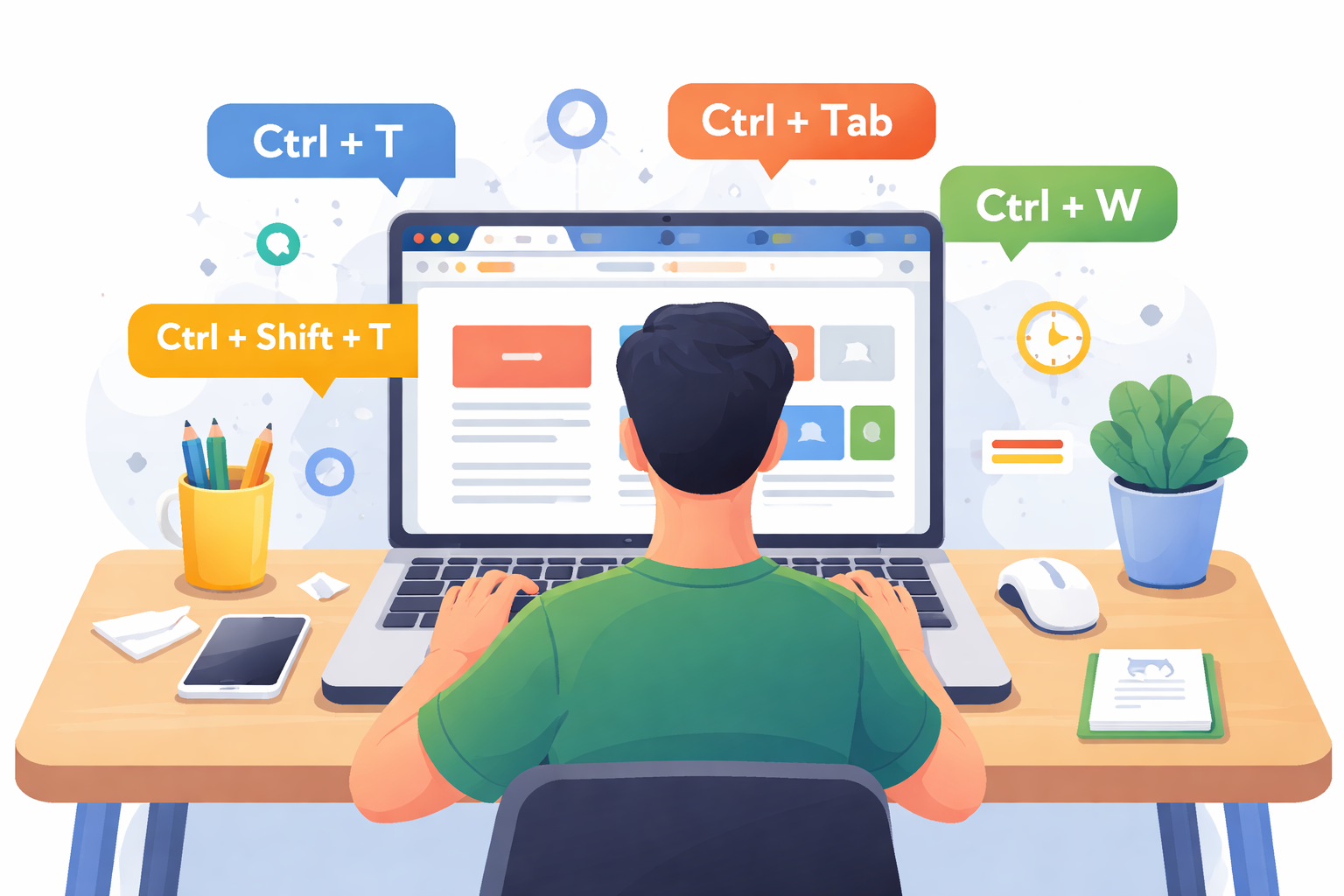
Modern browsing is all about speed, efficiency, and seamless navigation. Whether you’re managing multiple tabs, researching content, or handling daily tasks online, knowing the right keyboard shortcuts can significantly improve your workflow.
Instead of relying on your mouse for every action, keyboard shortcuts allow you to execute commands instantly—saving time and reducing repetitive effort. This guide covers essential browser shortcuts that work across all major platforms, helping you browse faster and work smarter.
What Is a Web Browser?
A web browser is a software application that allows users to access, retrieve, and display content on the internet. Popular browsers include Google Chrome, Mozilla Firefox, Safari, and Microsoft Edge.
While each browser has its own unique features, most share a consistent set of keyboard shortcuts. Learning these universal commands ensures you can switch between browsers without losing productivity.
For more practical browsing techniques, you can explore these internet tips.
Why Keyboard Shortcuts Matter for Faster Browsing
Improved Productivity
Keyboard shortcuts eliminate unnecessary clicks, allowing you to perform actions instantly. This is especially useful for users who work extensively online.
Better Multitasking
Managing multiple tabs becomes easier when you can switch, reopen, or close tabs using simple key combinations.
Reduced Strain
Minimizing mouse usage reduces hand movement and can help prevent repetitive strain during long browsing sessions.
Essential Browser Keyboard Shortcuts
Below is a refined list of the most useful shortcuts that work across nearly all major browsers.
Tab Management Shortcuts
Efficient tab handling is critical for productivity, especially when working with multiple pages.
Ctrl + T – Open a new tab
Ctrl + W / Ctrl + F4 – Close the current tab
Ctrl + Shift + T – Reopen the last closed tab
Ctrl + Tab – Switch to the next tab
Ctrl + Shift + Tab – Switch to the previous tab
Ctrl + 1–8 – Jump to a specific tab (left to right)
Ctrl + 9 – Switch to the last tab
Window and Navigation Shortcuts
These shortcuts help you move quickly across browser windows and pages.
Ctrl + N – Open a new browser window
Alt + F4 – Close the current window
Alt + Enter – Open a link in a new tab
Ctrl + L / Alt + D / F6 – Focus the address bar
Page Control and Zoom Shortcuts
Control how content appears on your screen for better readability.
Ctrl + Plus (+) – Zoom in
Ctrl + Minus (-) – Zoom out
Ctrl + 0 – Reset zoom to default
F11 – Toggle full-screen mode
Scrolling and Navigation Shortcuts
Move through pages quickly without touching your mouse.
Space / Page Down – Scroll down
Shift + Space / Page Up – Scroll up
Home – Jump to the top of the page
End – Jump to the bottom of the page
File and Page Actions
Handle files and browser actions more efficiently.
Ctrl + P – Print the current page
Ctrl + S – Save the current page
Ctrl + O – Open a file from your computer
History, Downloads, and Bookmarks
Access your browsing data instantly.
Ctrl + H – Open browsing history
Ctrl + J – Open downloads
Ctrl + D – Bookmark the current page
Pro Tips to Maximize Your Browsing Speed
Combine Shortcuts With Workflow Habits
Keyboard shortcuts become more powerful when integrated into your daily workflow. For example, opening multiple tabs with Ctrl + T while researching can streamline your process.
Focus on High-Impact Shortcuts First
You don’t need to memorize everything at once. Start with frequently used commands like tab switching, reopening closed tabs, and zoom controls.
Use Shortcuts Consistently
Consistency is key. The more you rely on shortcuts, the more natural they become, eventually replacing slower manual actions.
Common Mistakes to Avoid
Trying to Learn Everything at Once
Overloading yourself with too many shortcuts can slow down adoption. Focus on mastering a few at a time.
Ignoring Browser Differences
While most shortcuts are universal, slight variations may exist depending on your browser or operating system.
Not Practicing Regularly
Shortcuts only become effective when used consistently. Make a conscious effort to replace mouse actions with keyboard commands.
Final Thoughts
Mastering keyboard shortcuts is one of the simplest ways to improve your browsing efficiency. These small changes can lead to significant time savings, especially if you spend hours online every day.
By incorporating these shortcuts into your routine, you’ll navigate faster, multitask more effectively, and maintain a smoother workflow across any browser.
Related Posts
 Safety
What Not to Do And Internet Safety Tips To Protect You Online
Learn what not to do online and discover practical internet safety tips to protect your personal data, devices, and accounts from cyber threats.
 cheap internet deals
Cheap Internet Plans in Florida: Find the Right Fit Fast
Discover how to find cheap internet plans in Florida based on your lifestyle, location, and speed needs. Compare providers and choose the best plan today.
 cheap internet deals
Cheap Internet Plans vs Premium Plans
Cheap vs premium internet plans explained. Learn the key differences in speed, data limits, reliability, and pricing to choose the best plan for your home.
 Subscription
cheap internet offers
Subscription
cheap internet offers
Spectrum vs Verizon 5G Home Internet: Which Is Better?
Spectrum vs Verizon 5G Home Internet: compare speed, pricing, reliability, and availability to choose the best home internet provider for your household.
 Internet Bundles
How to Get Free or Cheap Internet in the U.S.
Learn how to get free or discounted internet in the U.S. Discover government programs, provider discounts, and practical ways to lower your monthly bill.