Can an Overheating Computer Slow Your Internet?
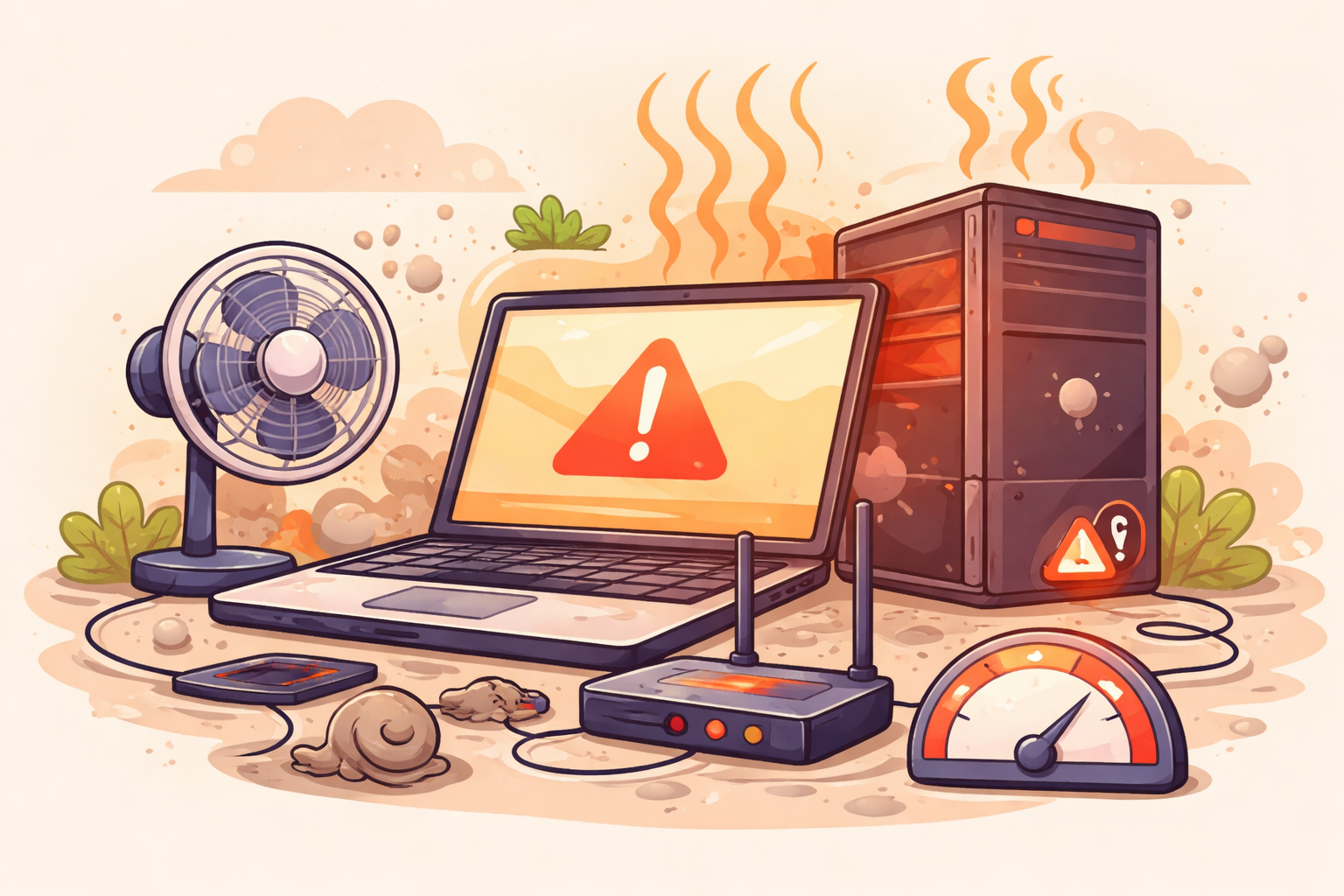
If your internet suddenly feels sluggish, your first instinct might be to blame your service provider. But before you upgrade your plan or reset your router for the tenth time, take a closer look at your computer. An overheating computer can significantly impact performance — and that includes how your internet speed appears to function.
When internal temperatures rise, your processor and other components automatically reduce performance to prevent damage. This process, known as thermal throttling, can make browsing slower, videos buffer longer, and downloads crawl — even if your actual internet plan hasn’t changed.
If you’ve been wondering why your connection feels slower than what you’re paying for, overheating could be the hidden culprit.
How Overheating Affects Internet Performance
Many people assume internet speed depends solely on their provider. While your plan sets the maximum bandwidth, your device determines how efficiently that bandwidth is used.
Thermal Throttling Slows Down Processing
Modern CPUs and GPUs are designed to protect themselves from heat damage. When temperatures spike, they automatically reduce clock speeds. That means:
Slower page loading
Delayed file downloads
Video buffering
Lag during video calls
Poor online gaming performance
Even if you’re subscribed to high-speed internet, your device may not process data fast enough when it’s overheated.
Network Adapters Can Be Affected
Excessive heat can also affect your network interface card (NIC) or Wi-Fi adapter. When components run hotter than recommended, they may operate inconsistently, leading to:
Intermittent disconnections
Reduced Wi-Fi stability
Lower data throughput
This creates the illusion of “slow internet” when the real issue is hardware stress.
Common Causes of Computer Overheating
Understanding what causes overheating helps you prevent it before performance drops.
Dust and Blocked Ventilation
Dust buildup is one of the most common causes of overheating. Over time, dust blocks air vents and clogs cooling fans, restricting airflow inside your computer.
Without proper airflow, heat accumulates quickly — especially during heavy use.
Poor Device Placement
Placing your laptop on soft surfaces like beds or couches blocks ventilation. Similarly, positioning your desktop near walls, windows, or heat sources traps warm air around the device.
Direct sunlight or proximity to kitchen appliances can also elevate internal temperatures.
Aging Hardware
Older computers are more vulnerable to overheating. Over time:
Thermal paste dries out
Cooling fans weaken
Internal components lose efficiency
An aging device working harder to keep up with modern software demands generates more heat.
Heavy Usage Without Breaks
Streaming in 4K, gaming for extended periods, video editing, and running multiple browser tabs can all push your CPU and GPU to maximum output.
Without adequate cooling or rest periods, temperatures spike quickly.
Signs Your Computer Is Overheating
Recognizing the symptoms early can save you from hardware damage.
Performance Warning Signs
Operating system lag
Programs showing “Not Responding”
Sudden shutdowns
Freezing screens
Slower file transfers
Physical Indicators
Device feels unusually hot
Fans running loudly or constantly
Warm air blowing aggressively from vents
If these issues appear alongside slow browsing or buffering, overheating may be the root cause.
How to Fix an Overheating Computer
The good news: most overheating issues are preventable with simple maintenance.
Improve Airflow Immediately
Place your computer in a well-ventilated area. Avoid:
Direct sunlight
Enclosed desks without airflow
Soft surfaces that block vents
Elevating a laptop slightly improves air circulation underneath.
Clean Internal Components
Regular cleaning prevents dust accumulation.
Use compressed air to clear vents
Gently clean fans
Remove debris from cooling grills
Routine maintenance dramatically improves cooling efficiency.
Use Cooling Accessories
External cooling pads are especially helpful for laptops. If your internal fan fails, replacing it promptly prevents long-term damage.
Avoid Overworking the System
Even high-performance devices need downtime.
If you use a powerful gaming laptop or desktop for extended streaming sessions, allow breaks to cool internal components.
Closing unused applications and browser tabs also reduces processor strain.
When Slow Internet Isn’t Your Computer
If you’ve optimized cooling and performance still feels slow, the issue may truly be your service.
Start by running a speed test. Compare your results with your subscribed plan. If speeds consistently fall below expected levels, it may be time to evaluate your connection.
You can explore available options to see what plans are available in your area.
Prevent Overheating Before It Slows You Down
Prevention is far easier than repair.
Create a Cooling Routine
Clean vents monthly
Keep devices elevated
Avoid heat exposure
Monitor temperature using system software
Upgrade When Necessary
If your computer struggles with modern tasks and overheats regularly, upgrading RAM, replacing thermal paste, or investing in a newer system may provide long-term stability.
Outdated hardware often works harder to perform basic tasks — generating more heat in the process.
Final Thoughts
An overheating computer doesn’t directly reduce your internet bandwidth — but it absolutely impacts how efficiently your device processes online data.
Thermal throttling, hardware strain, and unstable network adapters can all make your connection feel slower than it actually is. Before assuming your provider is at fault, check your device’s temperature, airflow, and maintenance routine.
Sometimes the fix isn’t a faster plan — it’s a cooler computer.
Related Posts
 Safety
What Not to Do And Internet Safety Tips To Protect You Online
Learn what not to do online and discover practical internet safety tips to protect your personal data, devices, and accounts from cyber threats.
 cheap internet deals
Cheap Internet Plans in Florida: Find the Right Fit Fast
Discover how to find cheap internet plans in Florida based on your lifestyle, location, and speed needs. Compare providers and choose the best plan today.
 cheap internet deals
Cheap Internet Plans vs Premium Plans
Cheap vs premium internet plans explained. Learn the key differences in speed, data limits, reliability, and pricing to choose the best plan for your home.
 Subscription
cheap internet offers
Subscription
cheap internet offers
Spectrum vs Verizon 5G Home Internet: Which Is Better?
Spectrum vs Verizon 5G Home Internet: compare speed, pricing, reliability, and availability to choose the best home internet provider for your household.
 Internet Bundles
How to Get Free or Cheap Internet in the U.S.
Learn how to get free or discounted internet in the U.S. Discover government programs, provider discounts, and practical ways to lower your monthly bill.