Common Smartphone Problems and How to Fix Them Yourself
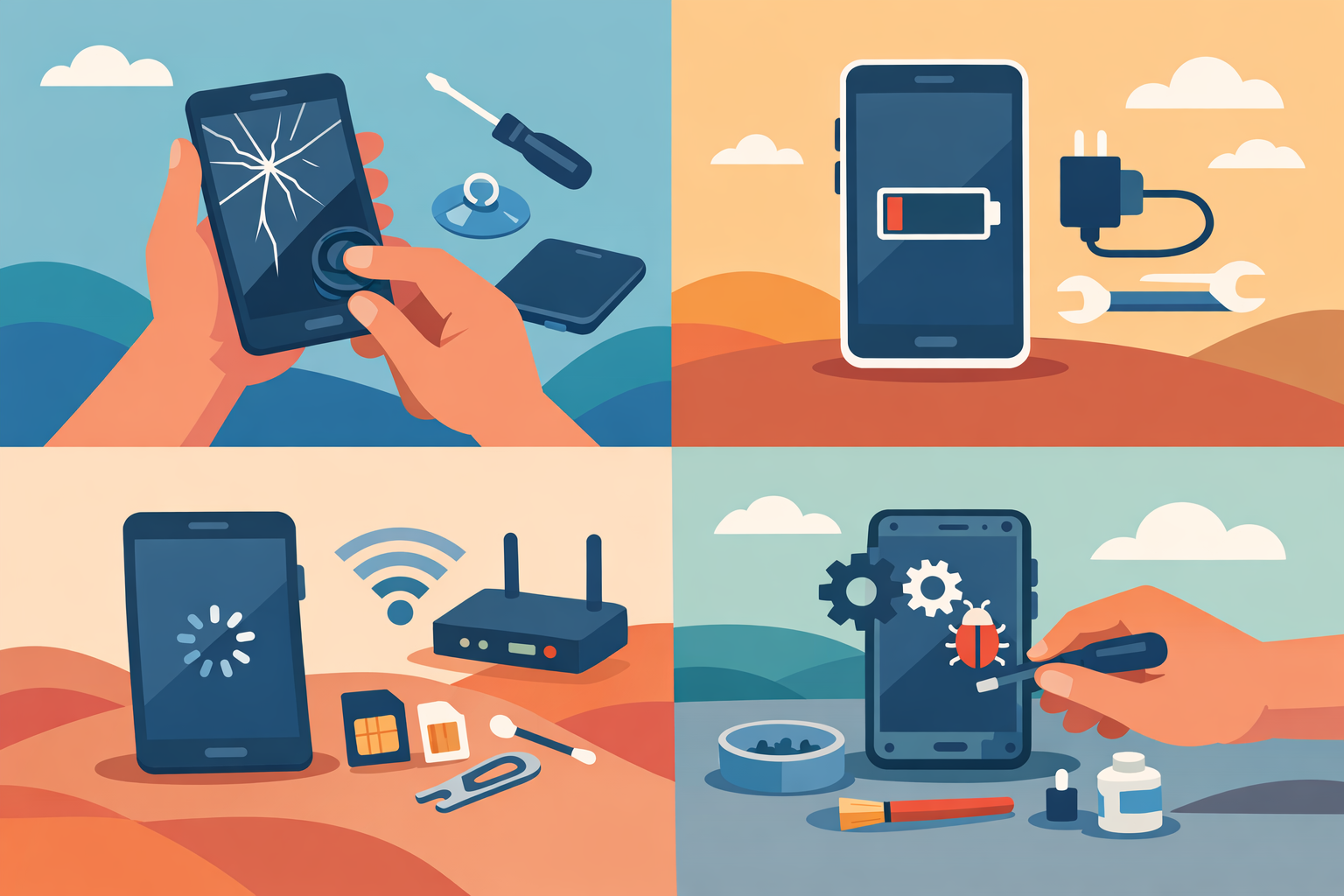
Smartphones are an essential part of our lives — we use them for work, entertainment, socializing, and everything in between. But even the best devices can start acting up from time to time. Whether your phone’s battery drains too fast, the screen freezes, or it suddenly won’t charge, don’t panic — most of these issues have simple solutions.
In this guide, we’ll go through the most common smartphone problems and share practical troubleshooting tips you can try at home before rushing to a repair shop.
1. Slow Performance or Lagging
One of the most frustrating problems for any smartphone user is when the device starts to slow down. Apps open sluggishly, screens freeze, or everything feels delayed.
Why It Happens
- Too many apps running in the background
- Insufficient storage space
- Outdated operating system
- Cache buildup from long-term usage
How to Fix It
- Close unused apps: Swipe away or force stop background apps that consume memory.
- Restart your phone: A simple reboot clears temporary files and refreshes memory.
- Clear cache: Go to Settings → Storage → Cached data and clear it regularly.
- Uninstall unused apps: Freeing up storage helps your phone process faster.
- Update your OS and apps: Software updates often include performance optimizations.
Pro Tip: If your device still feels sluggish, consider doing a factory reset — just back up your data first. This often makes older phones feel new again.
2. Battery Drains Too Fast
“Why is my phone battery draining fast?” — it’s one of the most common phone issues users search online. Thankfully, this problem is often easy to diagnose and fix.
Why It Happens
- High screen brightness
- Background apps running continuously
- Poor battery health from aging
- Power-hungry apps (like social media or navigation)
- Always-on features like Bluetooth, Wi-Fi, or GPS
How to Fix It
- Check battery usage: In Settings → Battery, identify which apps consume the most power.
- Lower brightness or use auto-brightness.
- Turn off background app refresh for apps that don’t need it.
- Disable Bluetooth and GPS when not in use.
- Use Battery Saver or Low Power Mode.
- Avoid overnight charging — this helps extend battery lifespan.
Bonus Tip: If your phone is more than two years old, consider replacing the battery. A new one can drastically improve performance and battery life.
3. Overheating Problems
Smartphones naturally heat up during heavy usage, like gaming or video recording. But when your phone gets too hot to touch, it’s a sign something’s wrong.
Why It Happens
- Running too many apps at once
- Charging while using the phone
- Direct sunlight exposure
- Faulty battery or background processes
How to Fix It
- Avoid multitasking during charging.
- Remove the case if the phone feels excessively hot.
- Stop charging temporarily and allow it to cool.
- Avoid direct sunlight or leaving your phone in a car.
- Check for software updates that fix known heating issues.
If overheating persists, it could indicate a battery or hardware problem — in that case, it’s best to contact a certified repair center.
4. Charging Issues
Another widespread smartphone problem is when the phone won’t charge properly — or takes hours to fill up.
Why It Happens
- Damaged charging cable or adapter
- Dust or debris in the charging port
- Faulty power source or wall outlet
- Software glitch preventing charging
How to Fix It
- Inspect your charging cable and adapter: Try a different set to rule out damage.
- Clean the charging port: Use a soft brush or compressed air to remove dust.
- Avoid using the phone while charging — it slows the process and generates heat.
- Restart your phone: Sometimes, a quick reboot fixes charging detection issues.
Pro Tip: If your phone supports wireless charging, test it to confirm whether the issue is with the port or battery.
5. Wi-Fi or Mobile Data Connectivity Issues
You’re trying to load a webpage or stream a video, but it keeps buffering — frustrating, right? Connectivity issues are among the most annoying smartphone problems, but they’re usually easy to fix.
Why It Happens
- Weak Wi-Fi signal
- Router or network malfunction
- Outdated software
- Incorrect network settings
How to Fix It
- Restart your Wi-Fi router and your phone.
- Forget and reconnect to the network via Settings → Wi-Fi.
- Check for system updates to fix connectivity bugs.
- Reset network settings: This often resolves stubborn data and Wi-Fi problems.
- Try switching to airplane mode for 10 seconds and then turn it off again.
If you frequently work remotely or travel, consider pairing your smartphone with a mobile hotspot plan for reliable data coverage when Wi-Fi isn’t available.
6. Apps Keep Crashing or Freezing
You open your favorite app and it crashes immediately — annoying, but common.
Why It Happens
- Bugs in the app itself
- Corrupted cache or data
- Low memory or outdated version
How to Fix It
- Update the app via Google Play or the App Store.
- Clear app cache and data from settings.
- Reinstall the app if issues persist.
- Update your phone’s OS — app crashes often stem from software incompatibility.
Pro Tip: If multiple apps are crashing, your operating system might be unstable. A full software update or reset can solve the issue.
7. Storage Space Running Out
Low storage can lead to slow performance, app crashes, and failed photo saves — a common problem for heavy smartphone users.
How to Fix It
- Delete unused apps and large files.
- Back up photos and videos to cloud storage.
- Use “lite” versions of apps like Facebook Lite or Messenger Lite.
- Move files to an SD card if your device supports it.
Bonus Tip: Regularly clear downloads and chat media (like WhatsApp) — they often take up gigabytes of space without you noticing.
8. Screen Freezes or Touchscreen Unresponsive
If your screen stops responding, don’t panic — this is usually fixable without replacing the phone.
How to Fix It
- Force restart the phone.
- Clean the screen with a soft, dry cloth — debris can affect touch sensitivity.
- Remove your case or screen protector, which might be interfering.
- Check for software updates.
If the problem continues, your screen’s digitizer (touch layer) might be damaged and could need professional repair.
Final Thoughts
Smartphones are advanced machines packed with powerful technology — but like any device, they can occasionally malfunction. The good news is that most common phone issues can be fixed at home with a few troubleshooting steps.
By keeping your phone’s software updated, clearing unnecessary files, and following basic maintenance habits, you can extend your phone’s lifespan and keep it performing smoothly.
If you’ve tried all these phone troubleshooting tips and your device still struggles, it might be time to contact your manufacturer’s support or visit a certified repair center.
Related Posts
 cheap internet deals
Best 300 Mbps Internet Deals: Top Plans Worth Paying For
Compare the best 300 Mbps internet deals from Xfinity, Spectrum, AT&T Fiber, and T-Mobile in 2026. Real pricing, hidden fees, and the right plan for you.
 Broadband Deals
cheap internet plans
Subscription
Broadband Deals
cheap internet plans
Subscription
Affordable High-Speed Internet for Seniors and Families
Find affordable high-speed internet for seniors and families. Compare speeds, costs, discounts, and low-cost plans to choose reliable service.
 Technology
Internet Speed Test: Benefits, Pros, and Cons Explained
Learn how internet speed tests work, what they measure, and their key benefits, pros, and cons. Get accurate results and use them to hold your ISP accountable.
 cheap internet deals
Wifi
cheap internet deals
Wifi
How to Get Cheap Temporary Internet for 3–6 Months
Learn how to get affordable temporary internet for 3–6 months without cancellation fees, including no-contract, 5G, prepaid, and flexible internet options.
 Broadband Deals
How to Search Internet Providers by Zip Code and Compare Plans
Search internet by zip code to find local providers, plans, and speeds available in your area. Compare options and get the best deal near you.