YouTube Key Commands That Make Watching Videos Faster
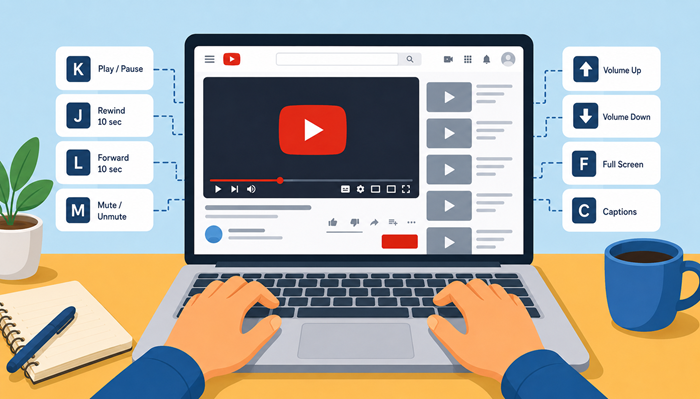
Whether you watch tutorials, attend online classes, enjoy entertainment, or spend hours researching content, learning youtube key commands can save a surprising amount of time. Instead of constantly reaching for your mouse, you can navigate videos, control playback, adjust volume, and switch viewing modes with just a few keystrokes.
Most people only use the spacebar to pause a video, but YouTube includes dozens of built-in shortcuts that make browsing far more efficient. Once these commands become part of your routine, you’ll notice smoother navigation, quicker searches, and a more enjoyable viewing experience. This guide covers the most useful shortcuts, explains when to use them, and shares practical productivity tips to help you get more from every video.
Why Learning YouTube Key Commands Is Worth It
Using youtube key commands isn’t just about convenience. It reduces unnecessary mouse movement, speeds up navigation, and helps you stay focused on the content instead of the controls.
Whether you’re a student, professional, gamer, or casual viewer, keyboard navigation can make long viewing sessions much more comfortable.
Another important factor is your internet connection. Smooth playback depends on reliable speeds, so choosing one of the best internet providers can significantly improve your overall streaming experience.
The Most Useful YouTube Keyboard Shortcuts
Here are the shortcuts every YouTube user should know.
Play or Pause a Video
Press:
Spacebar
K
Both keys instantly play or pause the current video without using your mouse.
This is one of the most frequently used youtube key commands because it keeps your attention on the video instead of the controls.
Skip Forward or Backward
Need to replay an important explanation or skip an intro?
Use:
J → Rewind 10 seconds
L → Fast-forward 10 seconds
Left Arrow → Back 5 seconds
Right Arrow → Forward 5 seconds
These shortcuts make reviewing tutorials much easier.
Adjust the Volume Quickly
Control sound without touching the volume slider.
Use:
Up Arrow → Increase volume
Down Arrow → Decrease volume
Small adjustments become much faster with these youtube key commands.
Jump to Any Part of a Video
Instead of dragging the timeline, press number keys.
Examples:
1 = 10%
2 = 20%
5 = 50%
9 = 90%
0 = Beginning
This is especially useful for long educational videos.
Speed Up Your Viewing Experience
Watching at faster playback speeds saves hours over time.
If you regularly watch tutorials or lectures, learning youtube keyboard shortcuts speed controls helps you consume content more efficiently.
YouTube allows playback speeds ranging from 0.25x to 2x depending on the content.
Switch Full Screen Instantly
Press:
F → Full Screen
Esc → Exit Full Screen
These simple youtube key commands eliminate the need to click the fullscreen icon every time.
Enable Mini Player
Need to continue watching while browsing?
Press:
I
The video shrinks into a floating player so you can continue exploring YouTube.
Activate Theater Mode
Press:
T
Theater Mode enlarges the player without entering full screen, offering a balanced viewing experience.
Many users prefer this layout for tutorials and presentations.
Toggle Captions
Press:
C
Captions improve accessibility and make it easier to follow videos in noisy environments.
Mute Instantly
Press:
M
This instantly mutes or unmutes audio.
It’s one of those youtube key commands you’ll end up using every day.
Move Frame by Frame
Pause the video first.
Then use:
, (previous frame)
. (next frame)
These controls are especially useful for sports analysis, animation, editing, and tutorials.
Navigate Chapters Faster
Many YouTube videos include chapters.
Use the number keys or timeline to jump directly to the section you need instead of watching the entire video.
Hidden Shortcuts Most People Never Use
Beyond the common controls, YouTube offers several lesser-known shortcuts.
Home and End Keys
Home → Beginning of video
End → End of video
These save time during lengthy content.
Search Inside Playlists
When watching playlists, keyboard navigation allows faster movement between videos.
Using youtube key commands makes playlist learning sessions much smoother.
Productivity Tips for Everyday YouTube Users
Learning shortcuts is only part of becoming more productive.
Here are a few habits that make an even bigger difference.
Watch at the Right Speed
Not every video needs normal playback.
Educational videos often remain easy to understand at 1.25x or 1.5x speed.
Learn Only a Few Shortcuts First
Don’t try memorizing everything.
Start with:
Play/Pause
Skip
Full Screen
Volume
Captions
Then gradually add more youtube key commands as they become second nature.
Reduce Buffering Interruptions
Even perfect shortcuts can’t fix a slow connection.
If you’re also trying to save mobile data while watching youtube, combining smart playback settings with keyboard controls creates a smoother viewing experience.
Common Mistakes When Using Keyboard Commands
Many users think shortcuts aren’t working when the issue is actually simple.
Common reasons include:
The video player isn’t selected.
You’re typing in the search box.
Browser extensions interfere with shortcuts.
Another application captures the keyboard input.
Click once inside the video player before trying the commands again.
Keyboard Shortcuts for Students
Students spend countless hours watching online lectures.
Using youtube key commands allows them to:
Review difficult concepts faster.
Replay important explanations.
Skip unnecessary introductions.
Increase playback speed.
Navigate lengthy educational videos efficiently.
These small improvements save significant study time throughout the semester.
Keyboard Shortcuts for Professionals
Professionals use YouTube for:
Software tutorials
Business training
Industry webinars
Product demonstrations
Mastering youtube key commands helps reduce interruptions while learning new skills.
If you stream frequently across different platforms, exploring the best internet and youtube tv bundles for streaming can improve both reliability and overall viewing quality.
Keyboard Shortcuts for Content Creators
Creators constantly review footage, analyze competitors, and research trends.
Quick playback controls make editing decisions much easier.
Frame-by-frame navigation is particularly valuable when studying transitions or motion graphics.
How Data Usage Affects Long Viewing Sessions
Watching videos for hours can consume a considerable amount of bandwidth.
Understanding comparing data usage across popular apps and services helps you manage your internet plan more effectively while enjoying uninterrupted streaming.
Combine Keyboard Shortcuts with Better Streaming Habits
Keyboard navigation works best alongside smart viewing habits.
For example:
Use captions when appropriate.
Increase playback speed for lectures.
Choose the correct resolution.
Learn chapter navigation.
Bookmark educational videos.
If you’re exploring entertainment options beyond YouTube, checking the best streaming services for cord-cutters in 2026 can help you discover platforms that match your viewing preferences.
Complete Shortcut Reference
Here are some of the most commonly used youtube shortcuts:
| Shortcut | Function |
|---|---|
| Space / K | Play or Pause |
| J | Rewind 10 seconds |
| L | Forward 10 seconds |
| Left Arrow | Back 5 seconds |
| Right Arrow | Forward 5 seconds |
| Up Arrow | Volume Up |
| Down Arrow | Volume Down |
| F | Full Screen |
| T | Theater Mode |
| I | Mini Player |
| M | Mute |
| C | Captions |
| Numbers 0–9 | Jump Through Video |
These youtube shortcuts keys are easy to remember and become second nature with regular use.
Final Thoughts
Learning youtube key commands is one of the simplest ways to improve your daily YouTube experience. Small keyboard actions can save time, reduce distractions, and make watching educational videos, tutorials, and entertainment far more efficient.
Start with just a handful of shortcuts and gradually expand your knowledge. Before long, navigating YouTube without relying on your mouse will feel completely natural.
Frequently Asked Questions
1. What are YouTube key commands?
They are built-in keyboard controls that let you navigate and control YouTube videos faster.
2. Do YouTube keyboard shortcuts work in every browser?
Yes, they work in most modern browsers when the video player is selected.
3. Can I customize YouTube keyboard shortcuts?
No, YouTube does not currently allow users to customize its default shortcuts.
4. Are YouTube keyboard shortcuts available on mobile?
No, they are primarily designed for desktop keyboard use.
5. Which shortcut is used most often?
The Spacebar or K key for play and pause is the most commonly used shortcut.
Related Posts
 Regulations
Technology
Regulations
Technology
What is An Internet Cookie?
Learn what internet cookies are, how cookies work, the different types of cookies, their benefits, privacy concerns, and how to manage them safely online.
 cheap internet plans
mobile phone plans
Broadband Deals
cheap internet plans
mobile phone plans
Broadband Deals
Which Internet Providers Offer a Cheap Mobile Plan?
Discover which internet providers offer a cheap mobile plan when you bundle services. Compare savings, features, and the best options for your budget.
 Broadband Deals
Technology
Broadband Deals
Technology
What Is 5G and Why It Matters for Businesses and Everyday Life
Learn what 5G is, how it works, and why it matters for businesses and consumers. Discover its impact on speed, IoT, automation, and future connectivity.
 Technology
How to Choose High-Speed Satellite Internet for Your Home
Compare the best high-speed satellite internet providers, their features, coverage, speeds, pricing, and tips to choose the right internet service.
 Broadband Deals
cable deal
Broadband Deals
cable deal
How Spectrum Internet Compares to Xfinity, AT&T & HughesNet
Compare Spectrum Internet with Xfinity, AT&T, and HughesNet based on speed, pricing, reliability, technology, and value to choose the right provider.